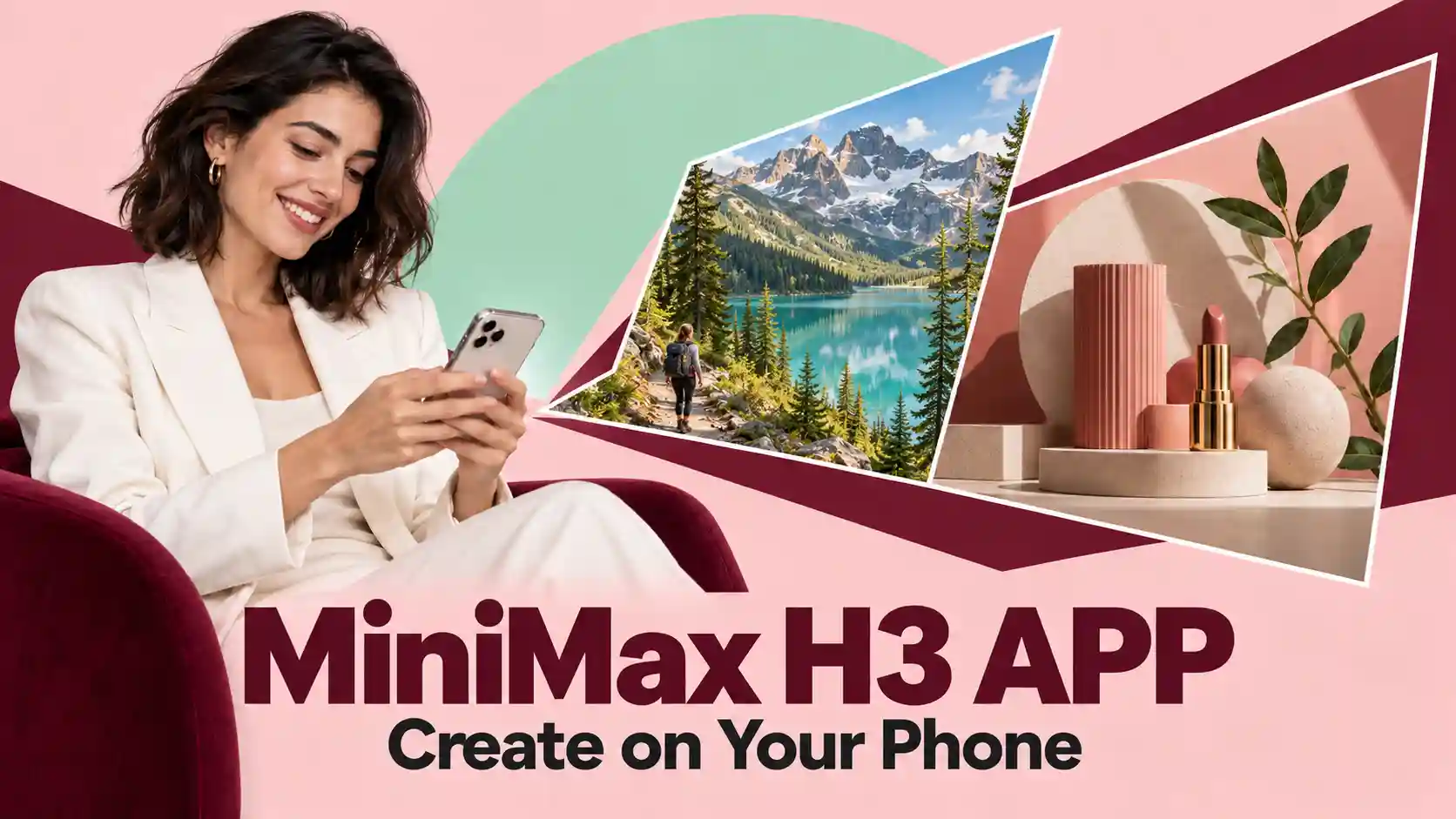
A photo in your gallery, a scene you have in mind, or a template that catches your attention can become the starting point for your next AI video.
MiniMax H3 app brings AI video creation to Android through MiniH3, listed on Google Play as AI video generator -MiniH3. Start with an image, write a prompt without uploading a photo, or add reference materials for more direction. You can also explore templates when you need a creative starting point.
TL;DR: MiniMax H3 Mobile APP
Choose your starting point: a photo, a written idea, or reference media.
Use templates for inspiration: find an effect you like and adapt it to your content.
Keep your first video simple: one clear action and a suitable aspect ratio make results easier to evaluate.
Review before saving: check the subject, motion, framing, and important details.
Choose How to Start: A Photo, a Prompt, or a Reference
The app has two generation modules: Image to Video and Reference to Video. Text-to-video creation is available by using Image to Video without uploading an image.
What you have | Where to start | What to describe |
A photo, product image, or illustration | Image to Video | What should move and how the camera should behave |
An idea without an image | Image to Video, leaving the image input empty | The subject, setting, action, and visual style |
Images, video, or audio references | Reference to Video | What each reference should guide |
Use an image when the starting appearance matters. A prepared photo gives you a defined subject and composition.
Start with text when you want to explore a new scene. Describe something visible and specific instead of relying on broad phrases such as “make an amazing video.”
Choose references when you need more direction. Explain whether a reference should guide the subject, movement, camera, or atmosphere. Adding more files is only helpful when their roles are clear.
MiniMax H3 mobile creation supports 6–15-second videos, 768P or 2K output, and multiple aspect ratios, giving you options for short social clips and other creative projects.
Find Your First Idea with AI Video Templates
You do not need a fully developed concept before opening the app. MiniMax H3 video templates give you a visual starting point you can reference for your own creation.
Choose the Result You Want
Look beyond the most eye-catching preview. Consider whether its movement, framing, and atmosphere suit your content.
A subtle camera move may work better for a product photo. A more expressive action may suit character artwork. Choose a template because it helps communicate your idea.
Match Your Material to the Example
Before using a template, compare its example with your input:
Does it feature one subject or several?
Is the subject shown close up or full length?
Is the composition vertical or horizontal?
Is the background simple or crowded?
A photo with a very different pose or composition may produce a different result. Choose compatible material before adding more instructions.
Personalize One Element First
Use the template’s reference option
Customize the available inputs.
Start by changing your subject or one important creative detail.
Once the result works, explore additional variations. This makes templates useful for beginners while leaving room for an individual style.
Prepare a Phone Photo That Works Better for Video
If you want to turn a photo into a video on Android, a few checks before uploading can make the task clearer.
Use the original file.
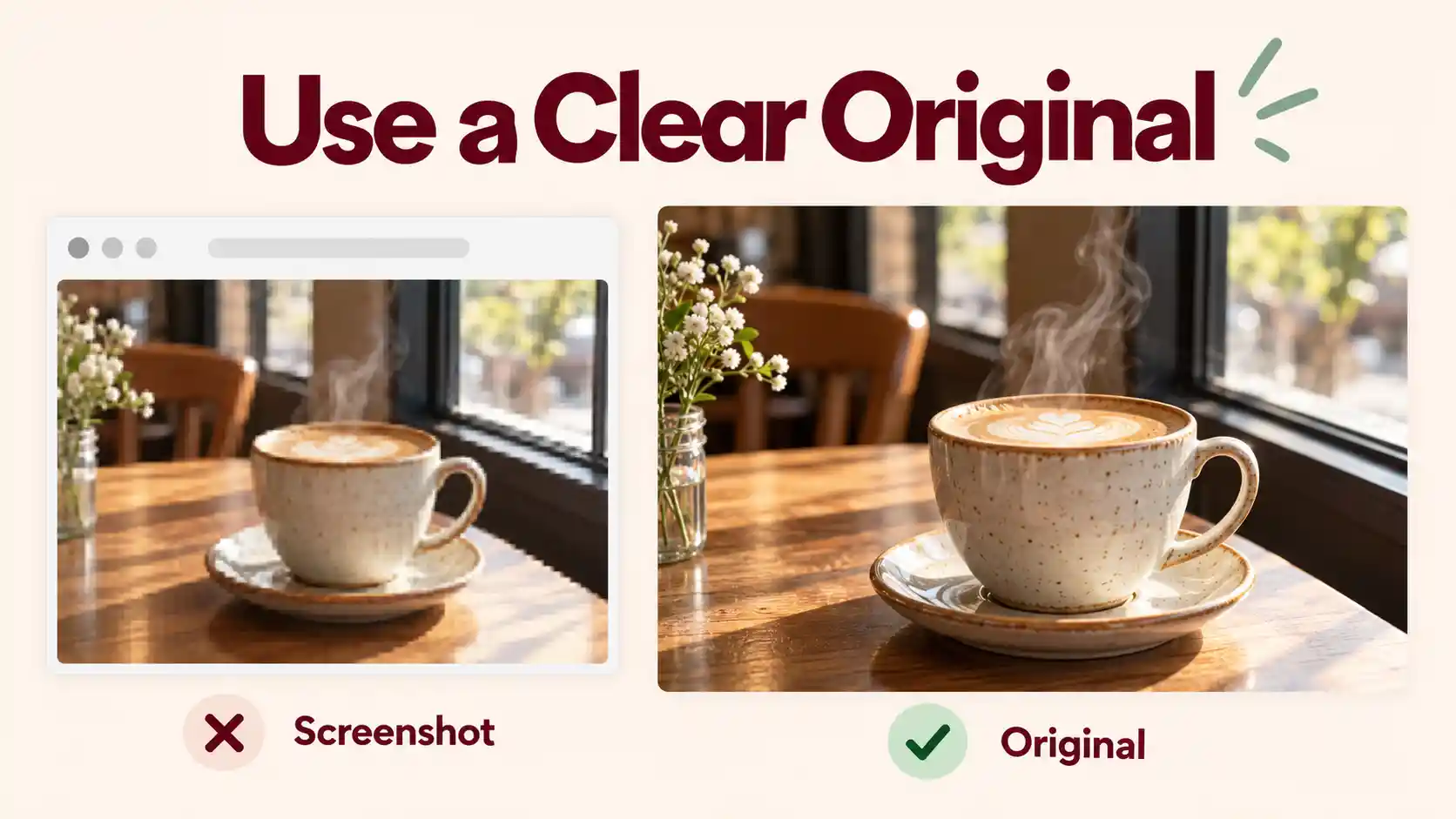
Prefer a clean photo over a screenshot containing interface buttons, captions, or compression artifacts.
Leave space for movement.
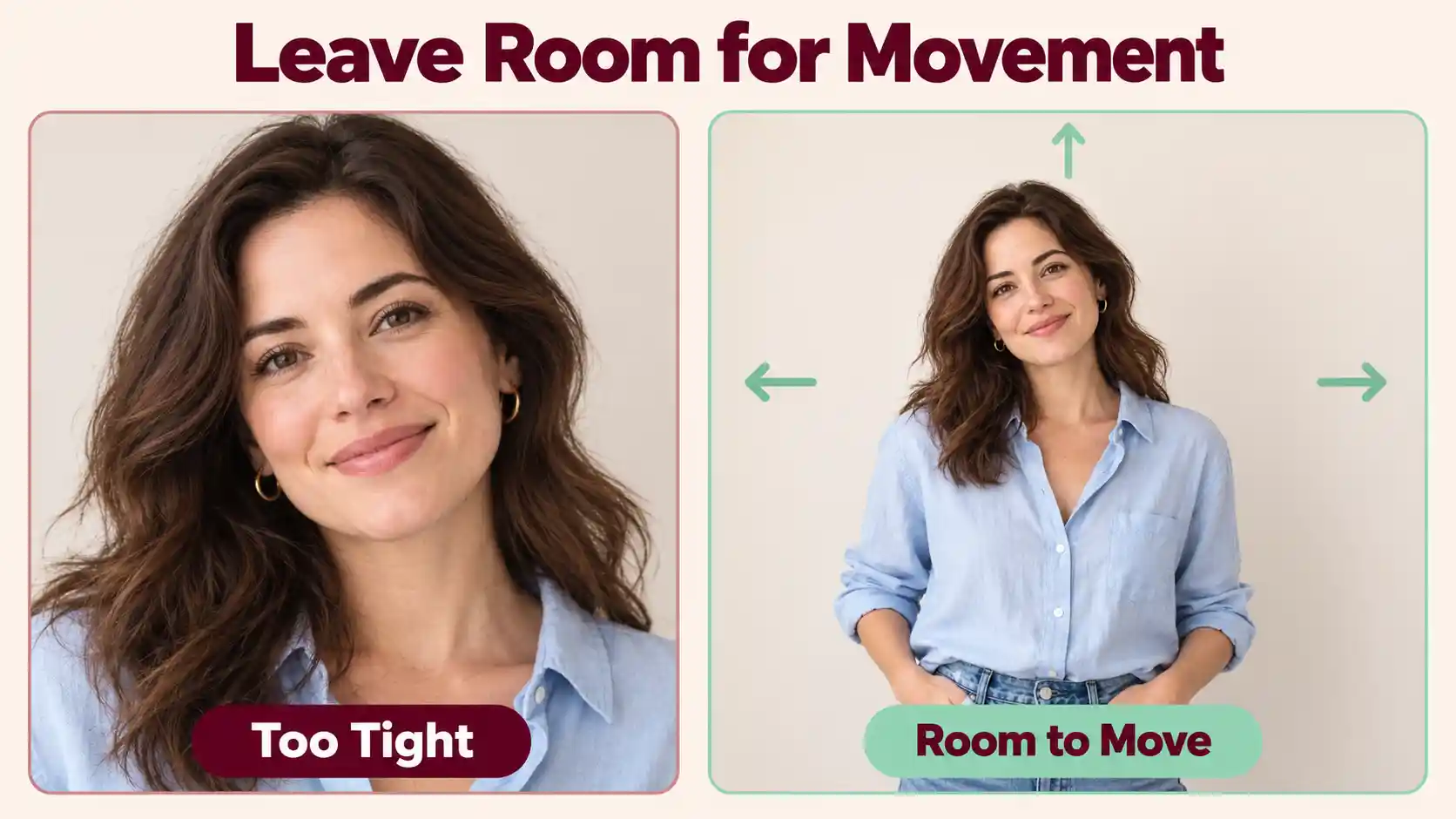
A tightly cropped portrait offers little room for a head turn. A product touching the image edge may be difficult to keep fully visible during a camera move.
Choose suitable framing.
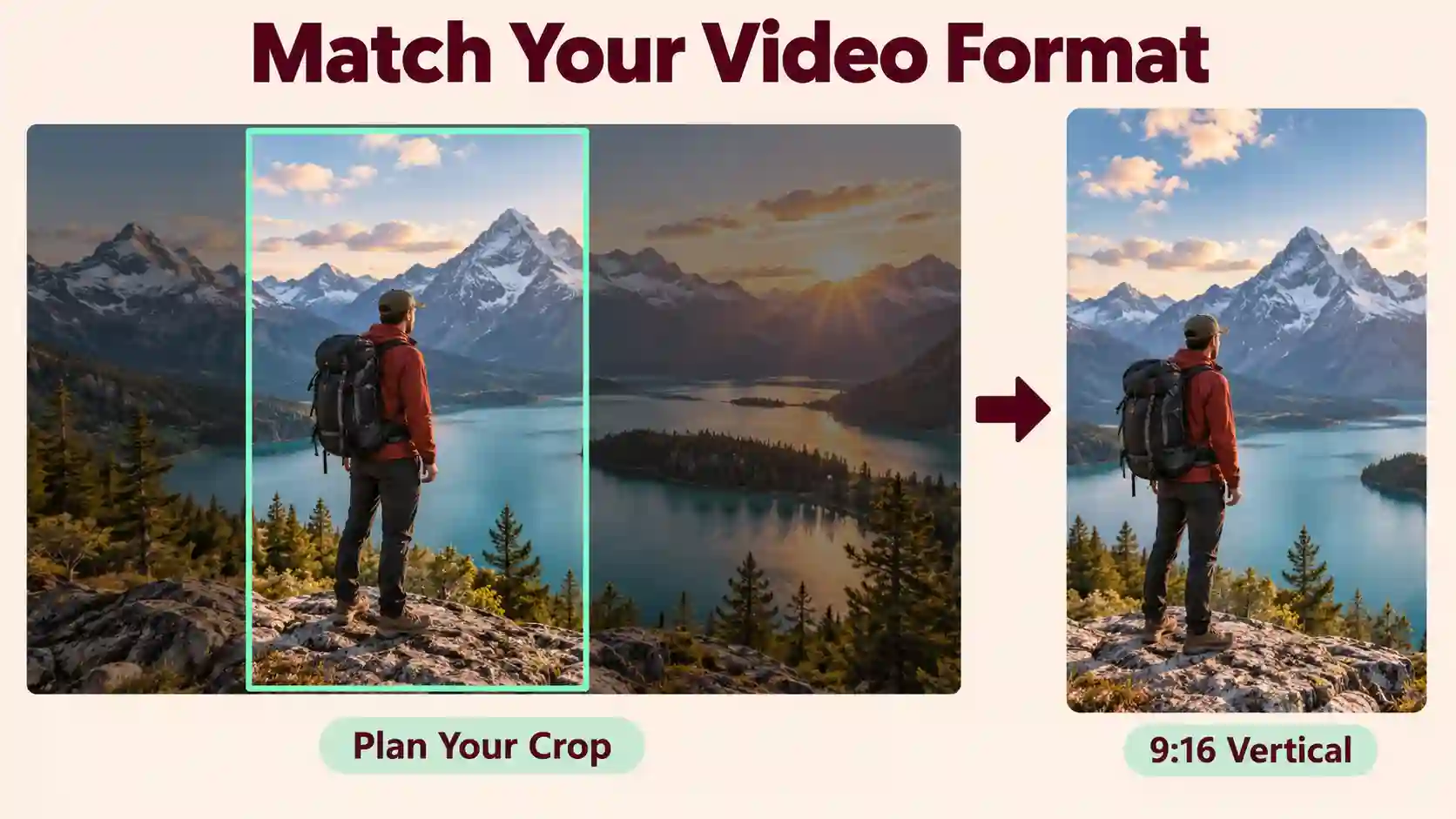
For a vertical clip, start with an image that already works in a vertical composition.
Inspect the subject.
Check faces, hands, product edges, and any visible lettering. Existing flaws may become more noticeable once the image moves.
You do not need a complicated scene. A clear subject with enough surrounding space is a practical first input.
How to Create Your First Video in the MiniMax H3 App
Step 1: Install and Open MiniH3
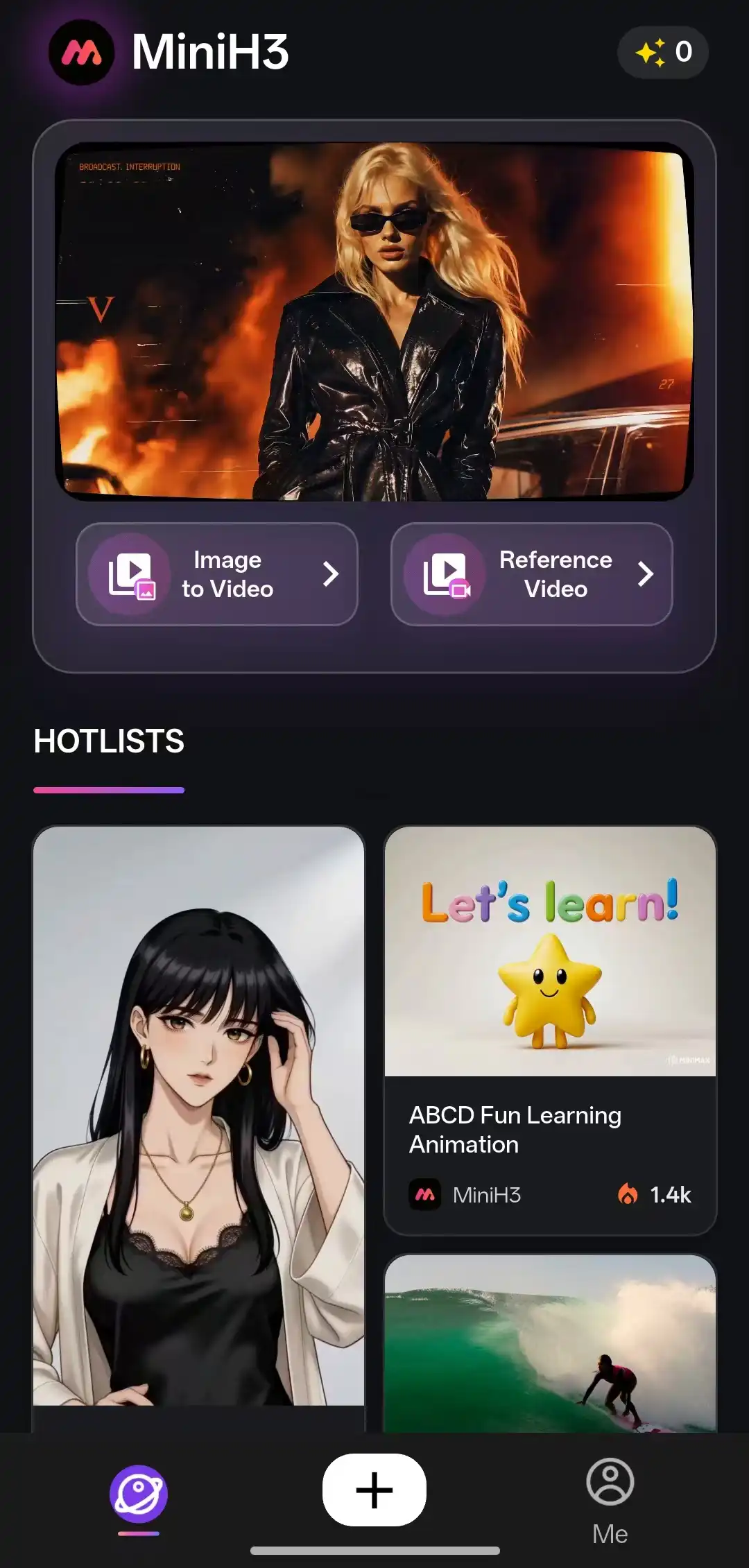
Open the Google Play listing. Look for AI video generator -MiniH3, then follow the installation and account setup instructions.
Step 2: Choose Your Starting Point
Select a template or open a generation module.
For a straightforward first attempt, use Image to Video with one clear photo. If you have no photo ready, leave the image input empty and describe a scene.
Step 3: Describe What Should Happen
For image-to-video, concentrate on movement rather than repeating everything already visible.
💡 A simple structure is:
Subject action + camera movement + atmosphere
For example:
The person turns toward the camera and smiles gently. The camera slowly moves closer. A light breeze moves their hair in soft afternoon sunlight.
For text-only generation, include the scene itself.
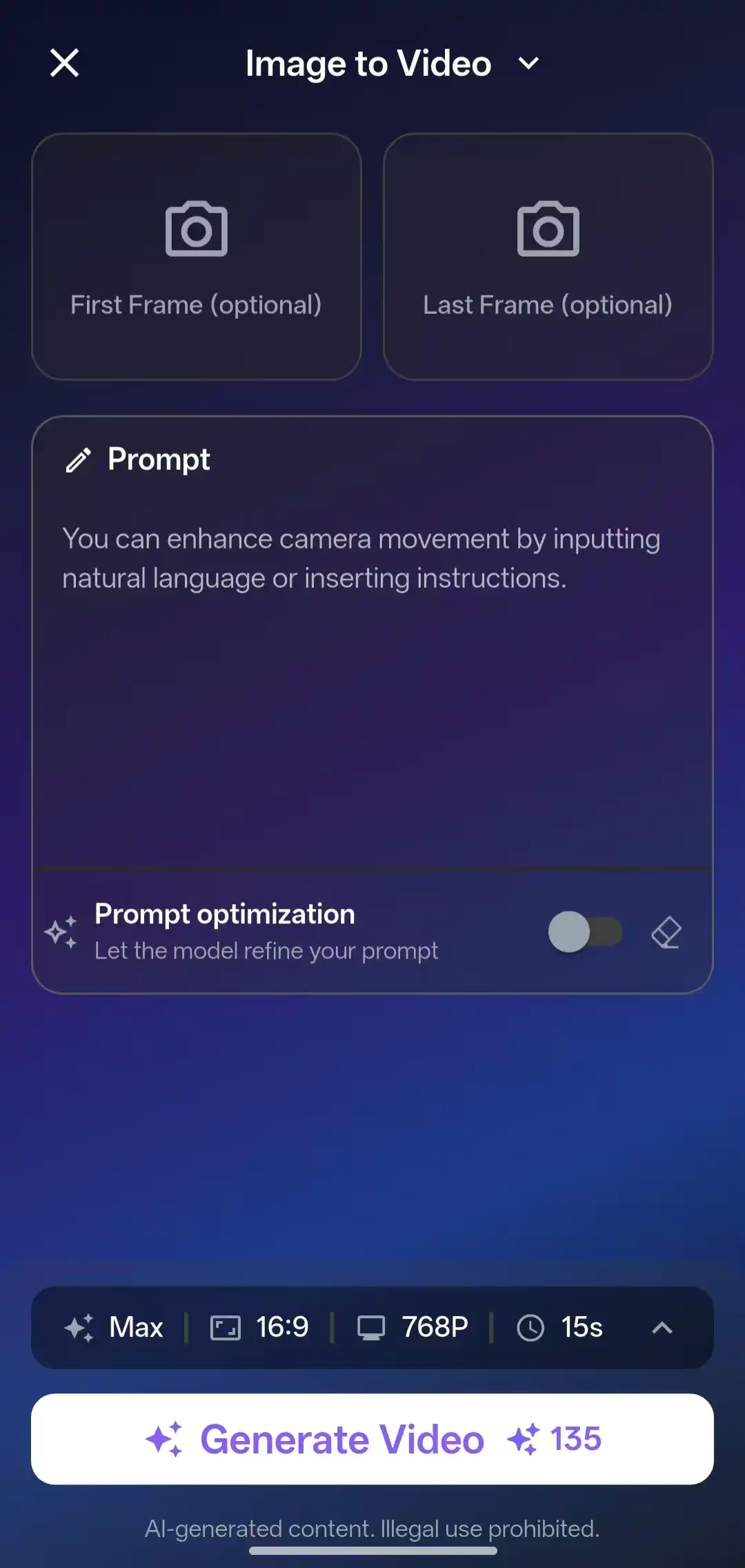
A small seaside café at sunrise. Steam rises from a coffee cup on an outdoor table as the camera slowly moves closer. Warm, natural light.
For reference generation, assign a clear role to each material.
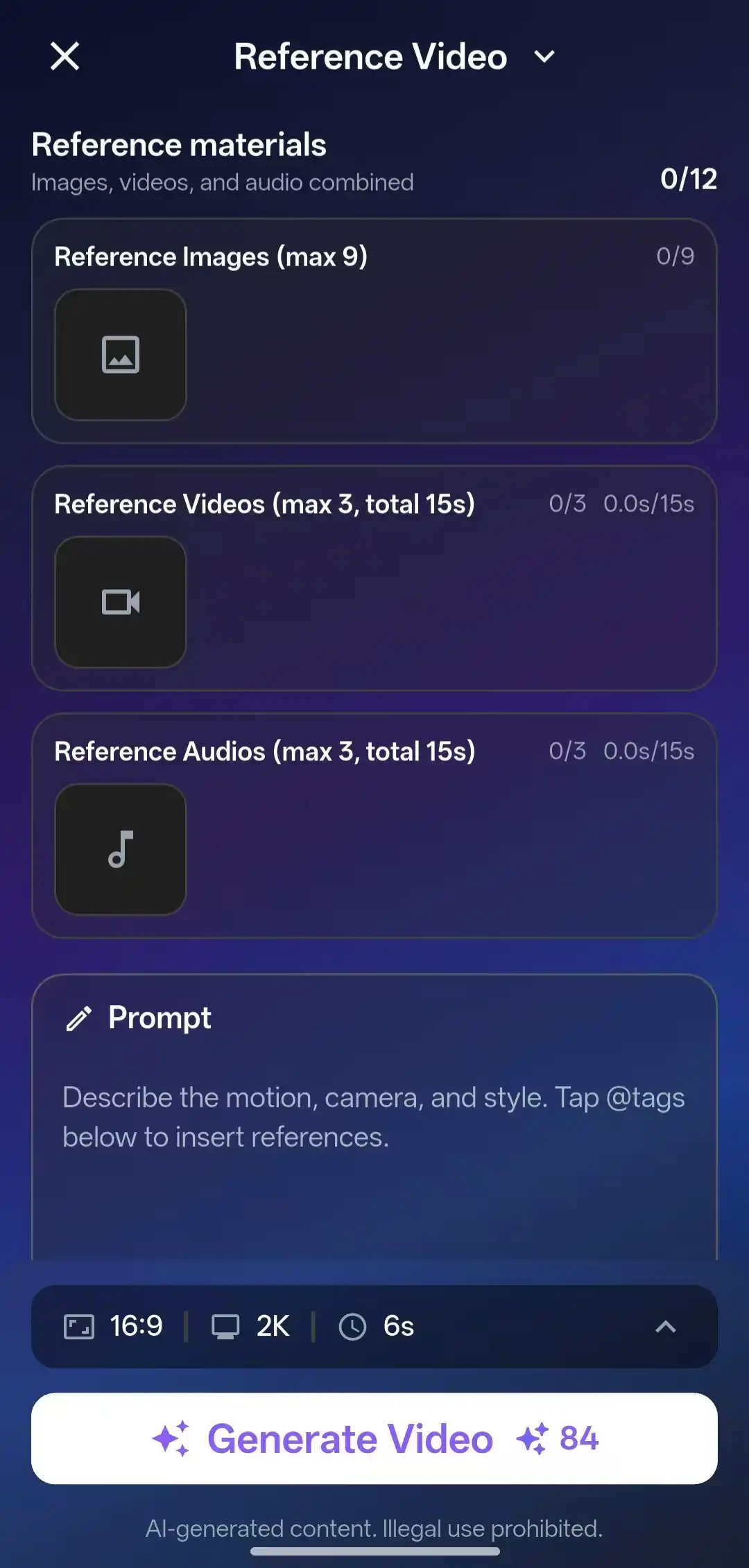
Use the image for the character’s appearance and the video for the walking motion. Place the character on a quiet beach at sunset.
Step 4: Choose Your Settings
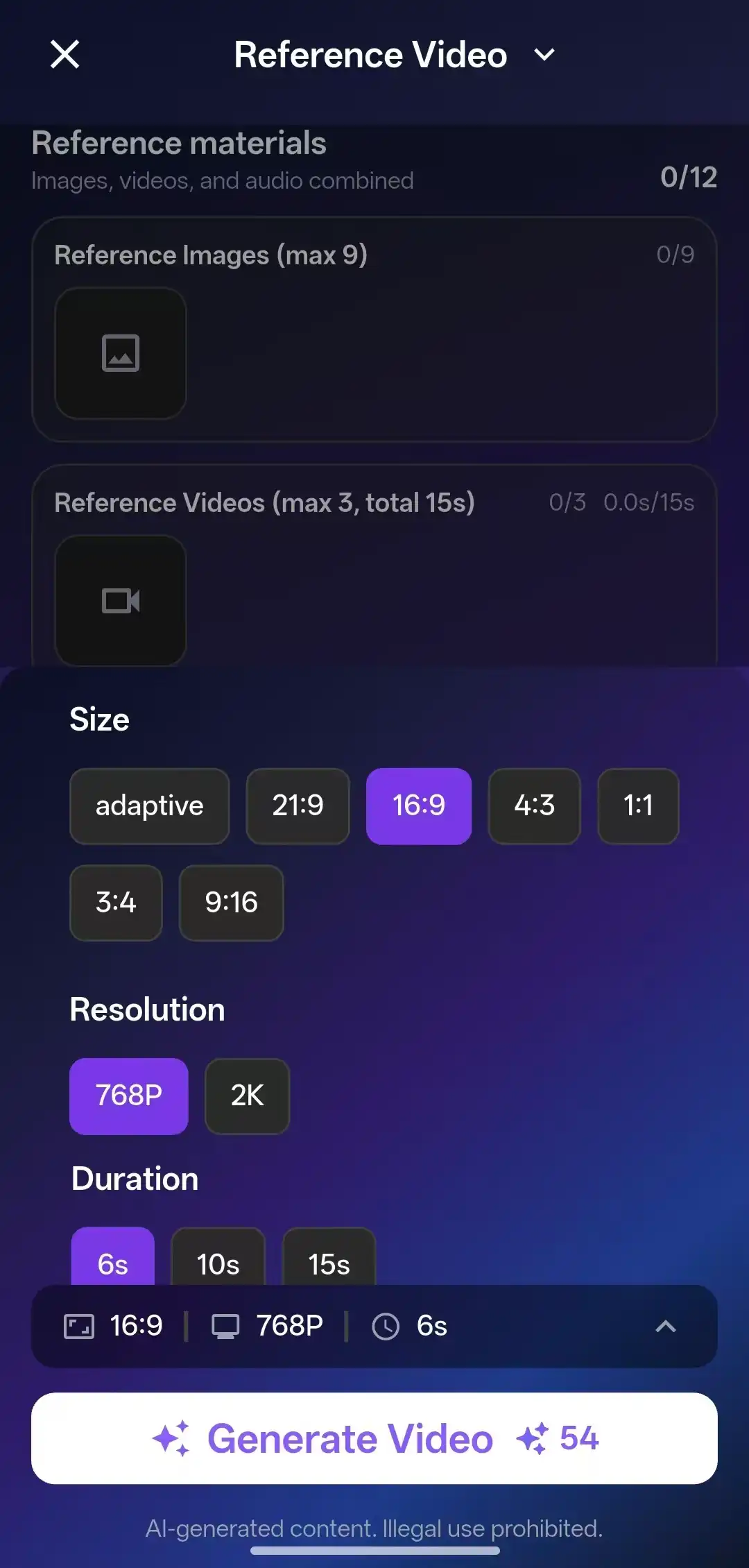
Select the aspect ratio, duration, and resolution for your intended use. Review the displayed credit requirement before generating.
Start with a short, focused shot so you can judge whether the main idea works.
Step 5: Generate, Review, and Save
Watch the entire result. Check whether the action is clear and whether important details remain recognizable.
If something needs improvement, change one instruction and try again. Save the result when it fits your purpose.
Five Ideas for MiniMax H3 Mobile Creators
Photo-Based Reels and Shorts
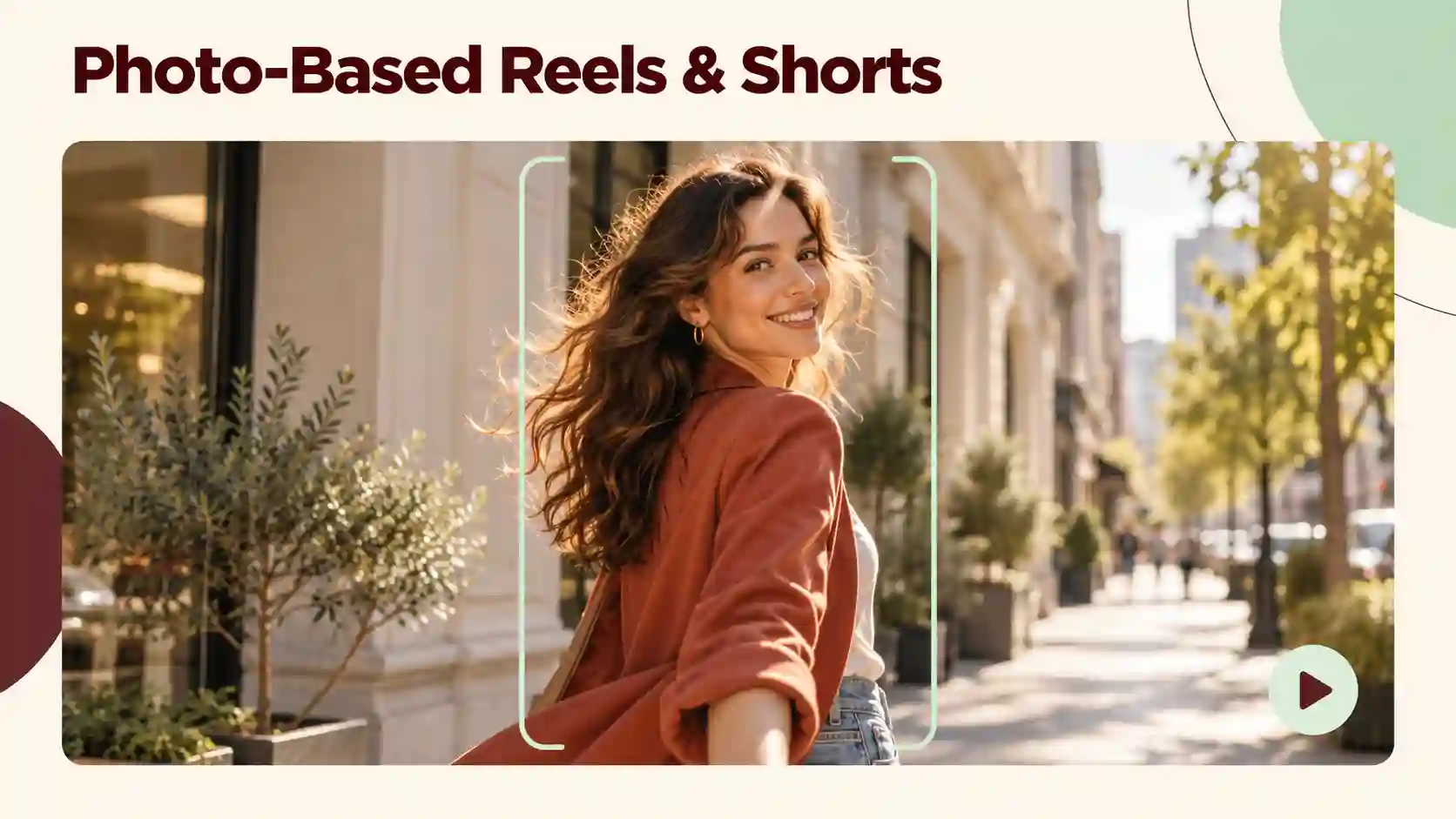
Turn a portrait, lifestyle image, or creative photo into a short visual for Instagram Reels, TikTok, or YouTube Shorts.
Try this: Build the clip around one noticeable action, such as a turn, reveal, or gentle camera approach. Leave space for captions you may add later.
Faceless B-Roll
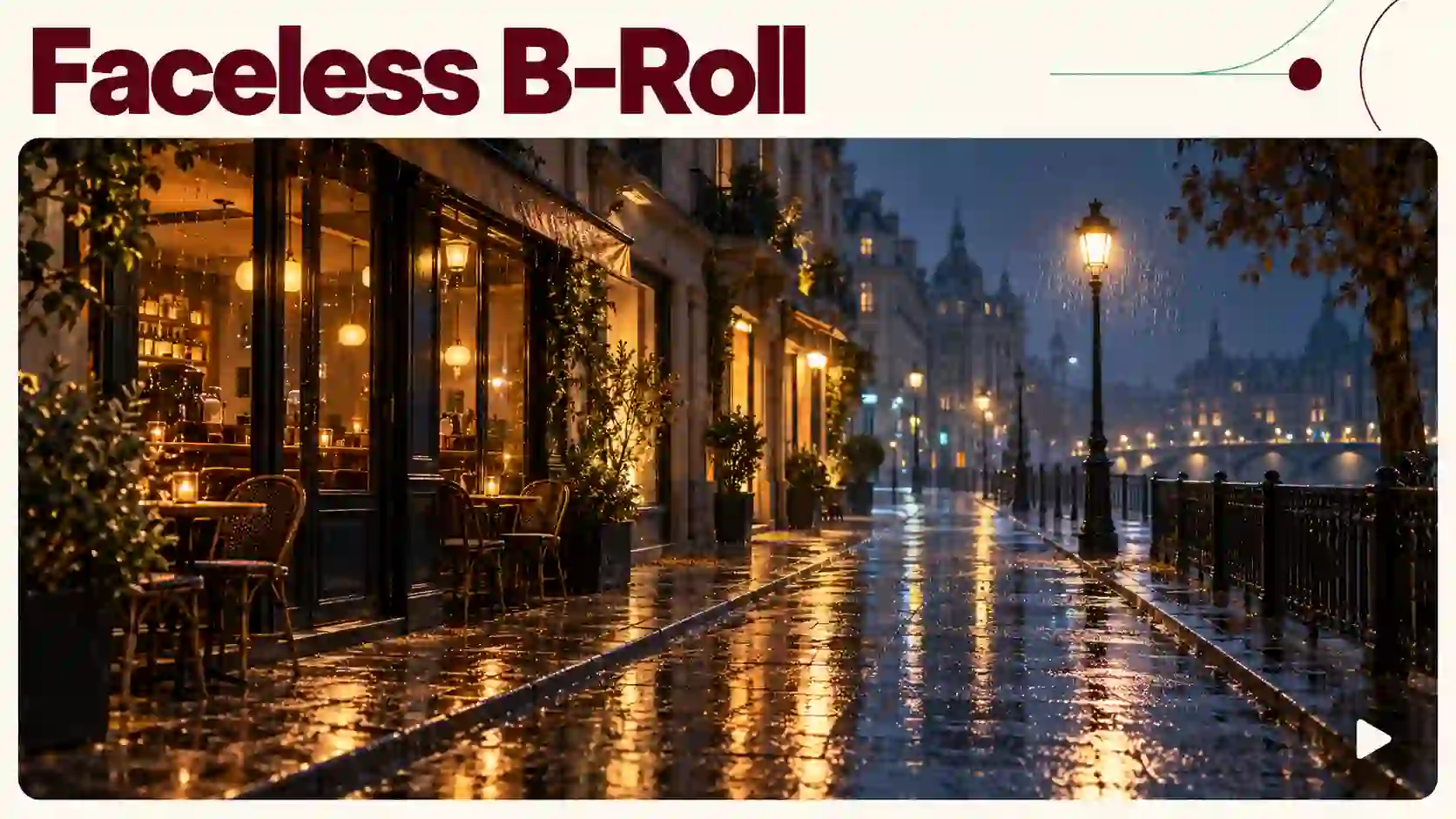
Create supporting shots for content where you do not want to appear on camera: a quiet workspace, a rainy street, or a close-up of an everyday object.
Try this: Match each generated shot to one idea in your narration. Combine the clips and voiceover afterward in a video editor.
Product Clips for Small Businesses
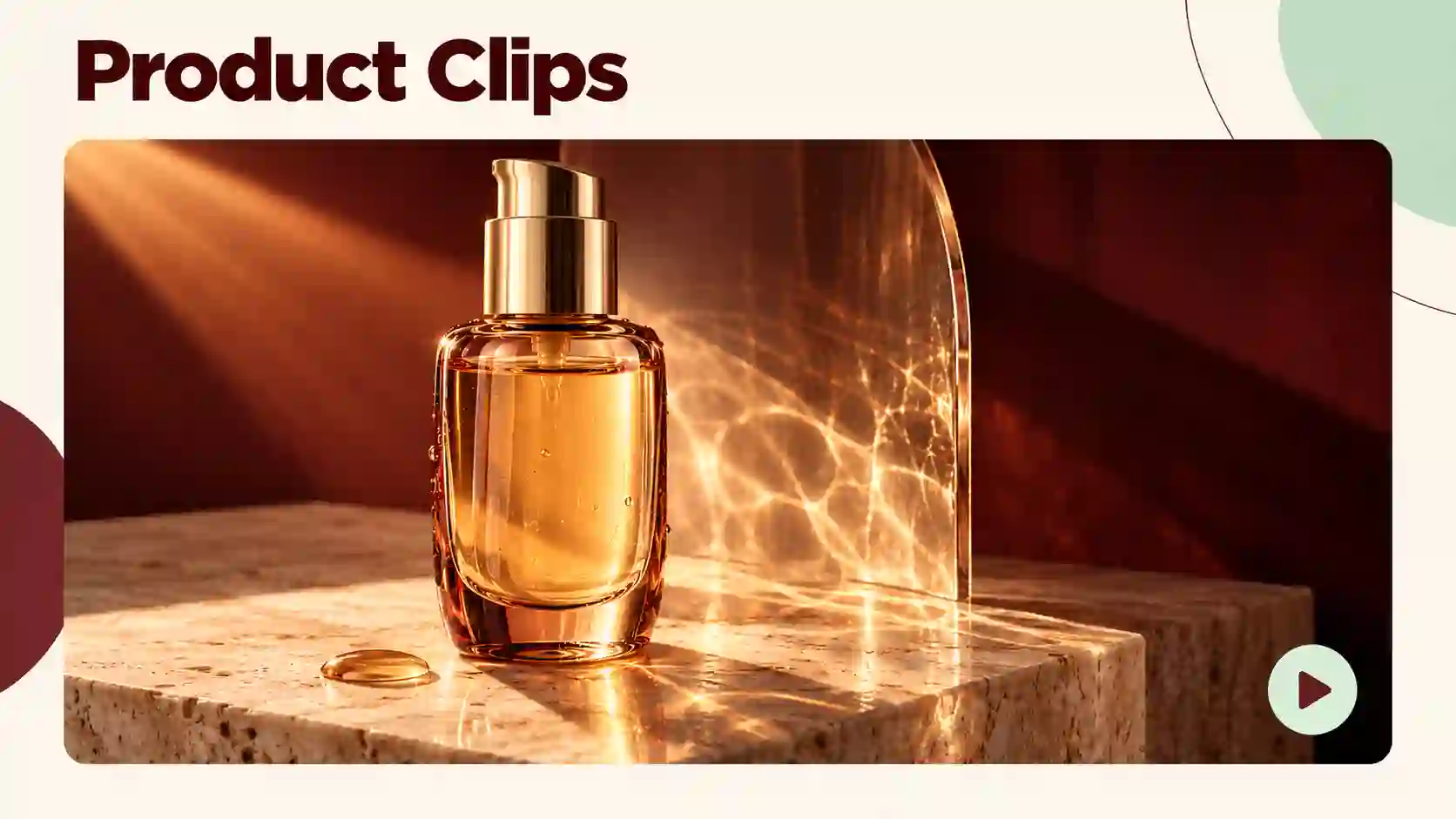
Use a prepared product photo to explore a short showcase without planning a full video shoot.
Try this: Ask for a slow push-in or subtle lighting change. Check labels, packaging, and product shape before using the result.
Character and Illustration Animation
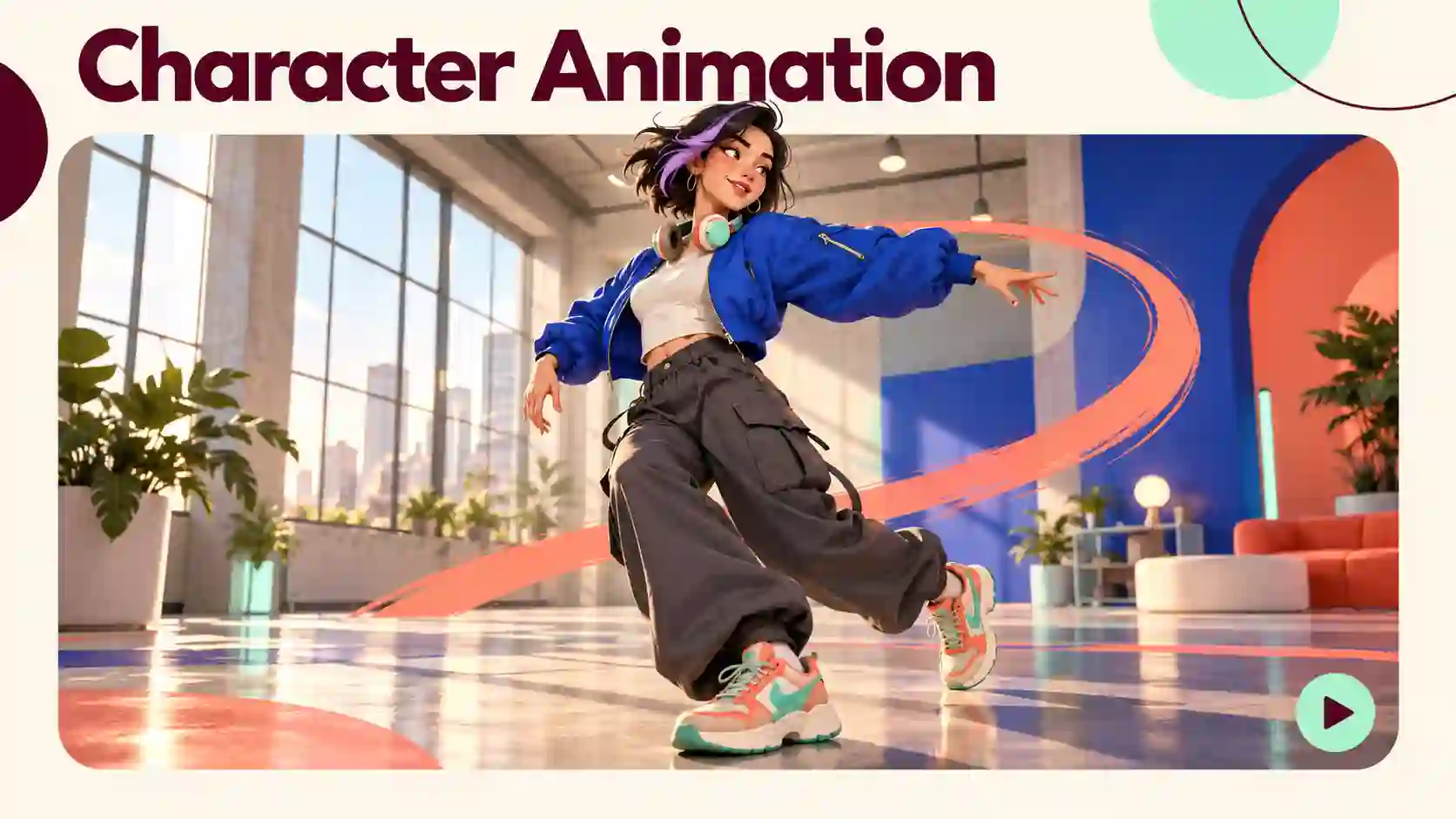
Give an original character or illustration a short moment of movement.
Try this: Begin with a head turn, expression change, or simple gesture. Avoid combining several difficult actions in the first attempt.
Travel and Lifestyle Mood Clips

Animate the atmosphere around a travel photo or lifestyle scene.
Try this: Start with environmental movement, water ripples, drifting clouds, or gently moving leaves, while keeping the main composition stable.
These are useful starting points for AI video creation on your phone, rather than promises that every input will produce the same quality.
Pick Settings That Fit Your Goal and Your Credits
Choose the format before generating.
For a vertical social clip, consider 9:16. Use a horizontal format when the video needs a wider composition. Starting with the intended shape reduces the need for heavy cropping later.
Match duration to the action.
A simple gesture needs less time than a sequence with several stages. Keep the requested action realistic for the selected length.
Compare resolution and credit cost.
Review the app’s current cost for 768P and 2K. You can test a direction at a lower setting before deciding how to generate the final version.
Change one variable at a time.
Adjust the motion, camera instruction, or reference selection separately. Otherwise, it becomes difficult to identify what improved the result.
Higher resolution changes the output setting; it does not automatically solve an unclear action or inconsistent subject.
Fix Common Problems Before Generating Again
Make one targeted change before trying again.
Too little movement?
Describe a specific action, such as turning, walking, or lifting an object.
Faces or products look different?
Use a clearer source image and simplify the requested motion.
Too much camera movement?
Ask for a fixed camera or one gentle camera move.
The subject gets cropped?
Leave more space around it in the source image and check the output aspect ratio.
The result differs from the template?
Choose an input with similar framing, pose, and number of subjects.
Fix the biggest issue first.
One clear adjustment is easier to evaluate than several changes at once.
For more detailed reference techniques, explore the MiniMax H3 guides.
MiniMax H3 APK Download: Get the Android App
If you are searching for MiniMax H3 APK, the installation option linked here is the MiniH3 Google Play listing.
You can also visit the MiniMax H3 mobile app page for an overview of the Android experience.
Start with One Photo, One Idea, or One Template
The easiest way to explore the MiniMax H3 app is to begin with something simple.
Choose a photo, describe one action, or reference a template that fits your idea.
Review the result, make a focused adjustment, and build from there.
Try MiniMax H3 in Your Browser
MiniMax H3 Mobile APP FAQs
Is the MiniMax H3 app free to use?
Yes, sign in to receive free credits and try AI video generation in the MiniMax H3 app, just as on the website. Each generation uses credits based on your selected settings. Check the displayed cost before generating, and purchase additional credits when needed.
Can I use MiniMax H3 without installing the app?
Yes. You can use the MiniMax H3 generator through a browser. Choose whichever access method fits your workflow.
Can I make a longer video from several generated clips?
Yes. You can plan several short shots, generate them separately, and combine them in a video editor. Keep the subject, visual style, and scene direction consistent across your prompts.
Can I add captions and branding?
You can add precise captions, logos, and other branding afterward in a video editor. Leave suitable space in the generated composition for those elements.
Will 2K fix unnatural movement?
Not by itself. Motion problems usually need changes to the prompt, input material, or complexity of the requested action. Evaluate movement and composition before choosing the final output resolution.