 Input image
Natural Talking Portrait
Turn a professional portrait into a natural welcome video with clear speech and subtle facial movement.
Input audio
AI talking photo generator
MiniMax H3 Lip Sync turns your photo and voice recording into a talking video—no filming needed. Upload your files and click Generate.
Create online
Upload one clear portrait and the audio you want it to speak. Choose a resolution, review the estimated credit cost, and generate your video.
Only upload photos and voices you own or have permission to use.
Upload a portrait and an audio clip to begin.
Use one clearly visible face and a clean recording from one speaker. The output duration follows the uploaded audio.
Three simple steps
Upload your portrait and recording, choose a resolution,
then generate and download your talking video in a few simple steps.
Choose a photo with a clear face and an uncovered mouth. For your first try, use one person facing forward or at a slight angle.
Upload the recording you want the person to say. Preview it first. Clear speech from one speaker usually works better than audio with music or overlapping voices.
Choose the output resolution and start generation. Check the mouth movement and facial details, then download the finished video.
Real generated results
Compare the source image and audio with real generated videos before creating your own.
Input imageTurn a professional portrait into a natural welcome video with clear speech and subtle facial movement.
 Input image
Make a stylized animal character speak while preserving its recognizable face and personality.
 Input image
Create a reusable virtual presenter for product news, campaigns, and short brand announcements.
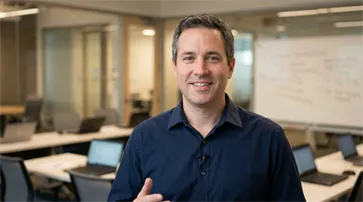 Input image
Use an instructor portrait to introduce a course, lesson, or internal training module.
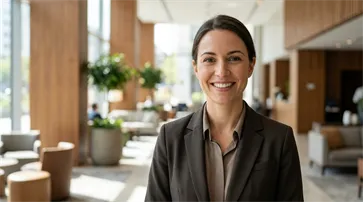 Input image
Pair one presenter with another language recording to create localized content for a new audience.
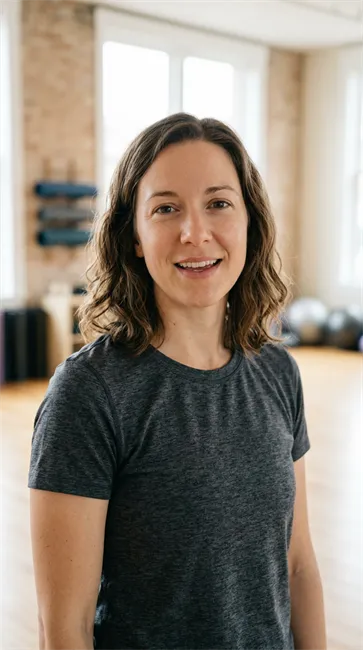 Input image
Reuse a familiar presenter image for weekly announcements, community news, and social updates.
Popular ways to create
Explore how businesses, creators, educators, and support teams use talking videos for marketing, social content, training, customer communication, and localization.
Marketing teams create presenter-led product introductions, feature announcements, and promotional content without scheduling another video shoot.
Creators and social teams produce announcements, short messages, and recurring updates with a recognizable on-screen presenter.
Educators and learning teams develop course introductions, lesson summaries, and employee training content that is easier to update.
Customer teams create onboarding messages, product explanations, and help content that answers common questions consistently.
Regional teams prepare presenter messages for different markets while maintaining a familiar visual identity across campaigns.
Internal communication teams deliver policy updates, leadership messages, and company announcements without organizing a new recording session.
Long-form lip sync
Upload one voice track and create a talking-photo video with the same duration. Use it for short social messages or longer AI avatar narration.
Create a quick greeting, a longer product explanation, or a full talking-avatar presentation.
The output video matches the supplied audio duration. There is no separate duration slider to configure.
Use one recording for longer narration instead of splitting every message into short clips before generation.
Built for talking photos
MiniMax H3 Lip Sync turns one still image and one supplied audio recording into a talking video. Your image defines who appears on screen, while your recording provides the voice, speech timing, and soundtrack.
The source image establishes the face, clothing, framing, visual style, and background. Photos, AI avatars, animals, and illustrated characters can be used, but one clearly visible face with an uncovered mouth usually works best.
The uploaded recording supplies the spoken words, original voice, rhythm, pauses, and video length. The tool uses your audio as the final soundtrack rather than generating a new voice from text.
The model animates the still face and creates mouth movements that follow the supplied speech. Results can vary when the face is turned away, the mouth is covered, or the recording contains noise or overlapping voices.
Optional transcription gives the model additional information about the words in your recording. It can help guide mouth movement for clear speech, but it does not rewrite, translate, or replace the uploaded audio.
Input quality and result limits
A clear face and clean single-speaker audio give the model stronger visual and speech signals to follow. Generated results can still vary, so review the full video before publishing.
Choose a sharp image with one main face looking forward or at a slight angle. Images with several people may make it harder for the model to identify who should speak.
Make sure the lips and lower face are visible. Hands, masks, microphones, heavy shadows, and extreme side profiles can reduce the clarity of the generated mouth movement.
Choose a recording with clear speech and consistent volume. Background music, strong echoes, clipping, and overlapping voices can make speech alignment less reliable.
Rapid delivery, singing, unusual pronunciation, and sound-heavy recordings may produce less consistent results. Start with a short sample before using a longer audio track.
Check the mouth movement, teeth, facial details, identity, and audio timing from beginning to end. Regenerate the video or adjust the source files if you notice visible artifacts.
Common questions
Upload one portrait and the audio you want it to speak. Choose a resolution, review the credit estimate, and generate your video. H3 Max Lip Sync animates the face to match your recording.
New accounts receive 50 starter credits. A five-second video at 480P costs 35 credits, so you can use your starter credits to try one preview at that setting. Generating additional videos requires enough credits in your account.
Upload one JPG, PNG, or WEBP image up to 30 MB and one MP3 or WAV audio file up to 15 MB. For clearer results, use a sharp image with one visible face and an uncovered mouth, plus clean audio from one speaker.
Your audio must be at least five seconds long and can be up to 15 minutes. The generated video follows the duration of your audio. The 15 MB audio file limit also applies.
Yes. Upload an MP3 or WAV recording you made yourself or created with another service, provided you have permission to use it. This tool uses your uploaded audio as the soundtrack; it does not generate a voice from text.
No. This workflow starts with a still image and an audio file. It does not accept an existing video as the visual input.
The cost depends on your audio length and selected resolution: 7 credits per second at 480P, 11 at 768P, 22 at 1080P, or 43 at 2K. Audio duration is rounded up to the next whole second. Review the estimated cost before generating.
A 15-second video typically takes about 30–60 seconds to generate. Longer audio, higher resolutions, or heavy service traffic may increase the wait. Your result appears in the output area when it is ready.
No. If generation fails, the credits deducted for that task are returned to your account. If your balance does not update, contact support@minimax-h3.com with the task details.
Download your completed talking video in the resolution you selected: 480P, 768P, 1080P, or 2K. Downloads are free and contain no watermark. Credits are used to generate the video, not to download it.
Upload one portrait and your audio, review the estimated cost, and create your lip-synced video.
Generate Talking Video