Two-Person Conversation
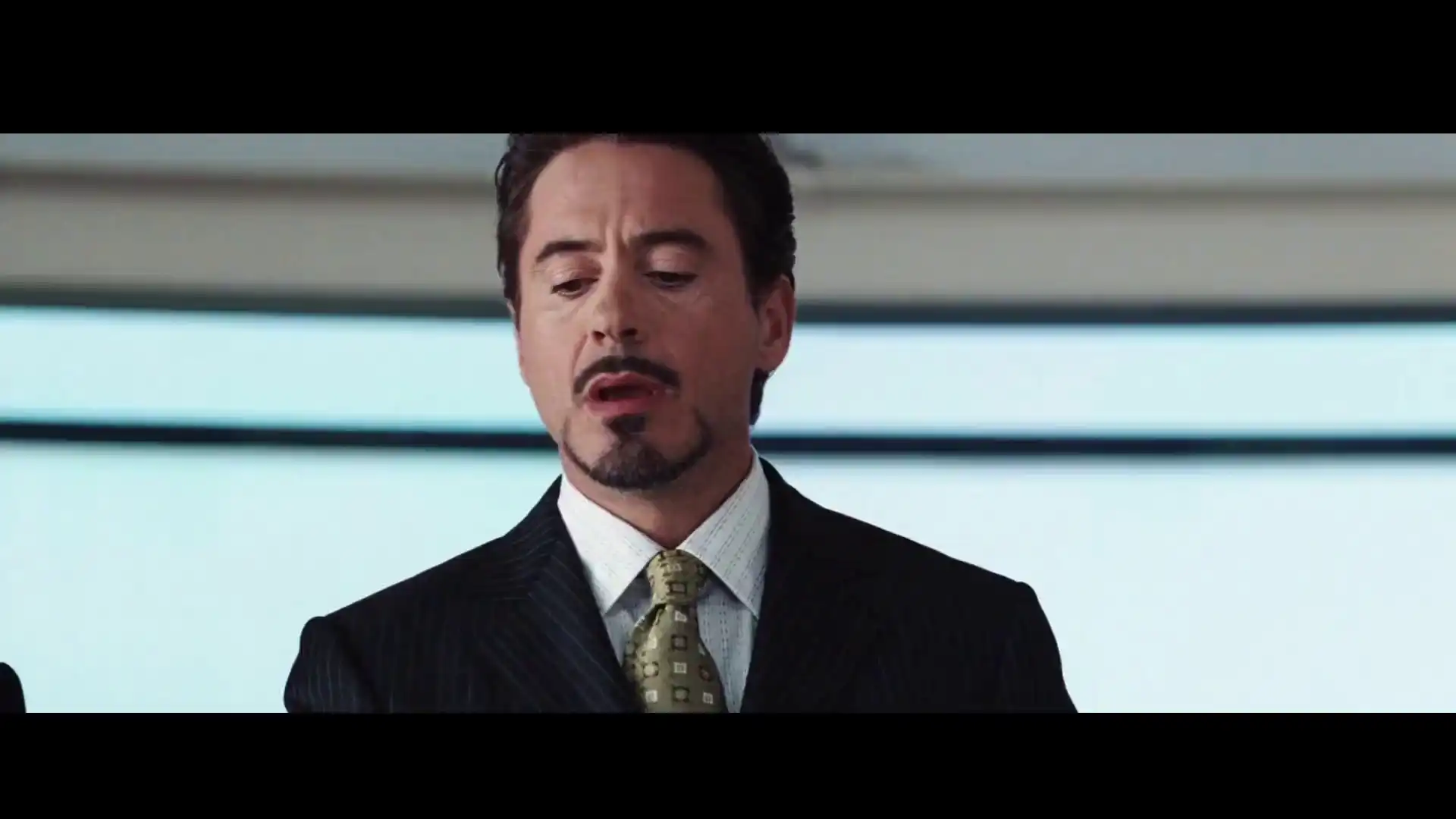
Compare how two replacement characters appear during a conversation. Watch their expressions, gestures, and interactions across the clip.
Original video
Reference 1

Reference 2

AI video character replacement
Keep the performance. Change the cast.
Upload an existing video and up to four reference photos of the new cast. Replace the people on screen while using the original motion, camera work, and soundtrack as a guide.
Recast online
Upload a source video and one photo for each replacement person. Check the cast order, then generate.
MP4 or MOV · 5–30 seconds · each shot up to 15 seconds
One photo per person, ordered left to right. JPG, PNG, or WEBP.
By default, your reference photos match the people in the video from left to right. Add a short instruction if you want to change the order.
A 5-second video costs 170 credits at 768P or 250 credits at 1080P.
All reserved credits are returned if generation fails or is blocked.
Upload a source video and reference photos, then generate your Recast video.
Watch the full result
Watch how MiniMax H3 Recast changes people in existing videos. Compare the original footage, reference photos, and generated results to see how each replacement looks in motion.
Compare how two replacement characters appear during a conversation. Watch their expressions, gestures, and interactions across the clip.
Original video
Reference 1
Reference 2
See how a new character looks during fast dance moves. Pay attention to body movement, clothing, and appearance between frames.
Original video
Reference 1
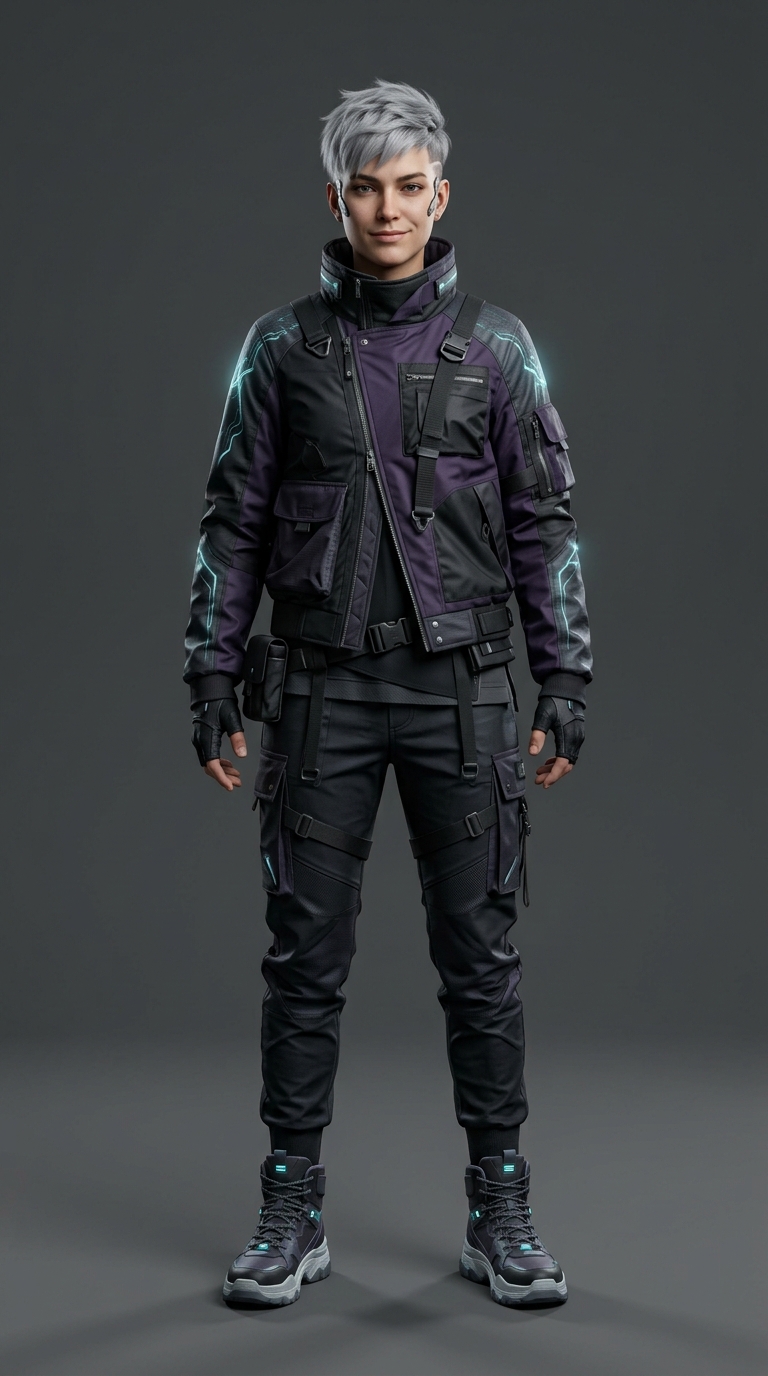
Compare the replacement model with the original walk and camera shots. Check how the new appearance fits the scene.
Original video
Reference 1
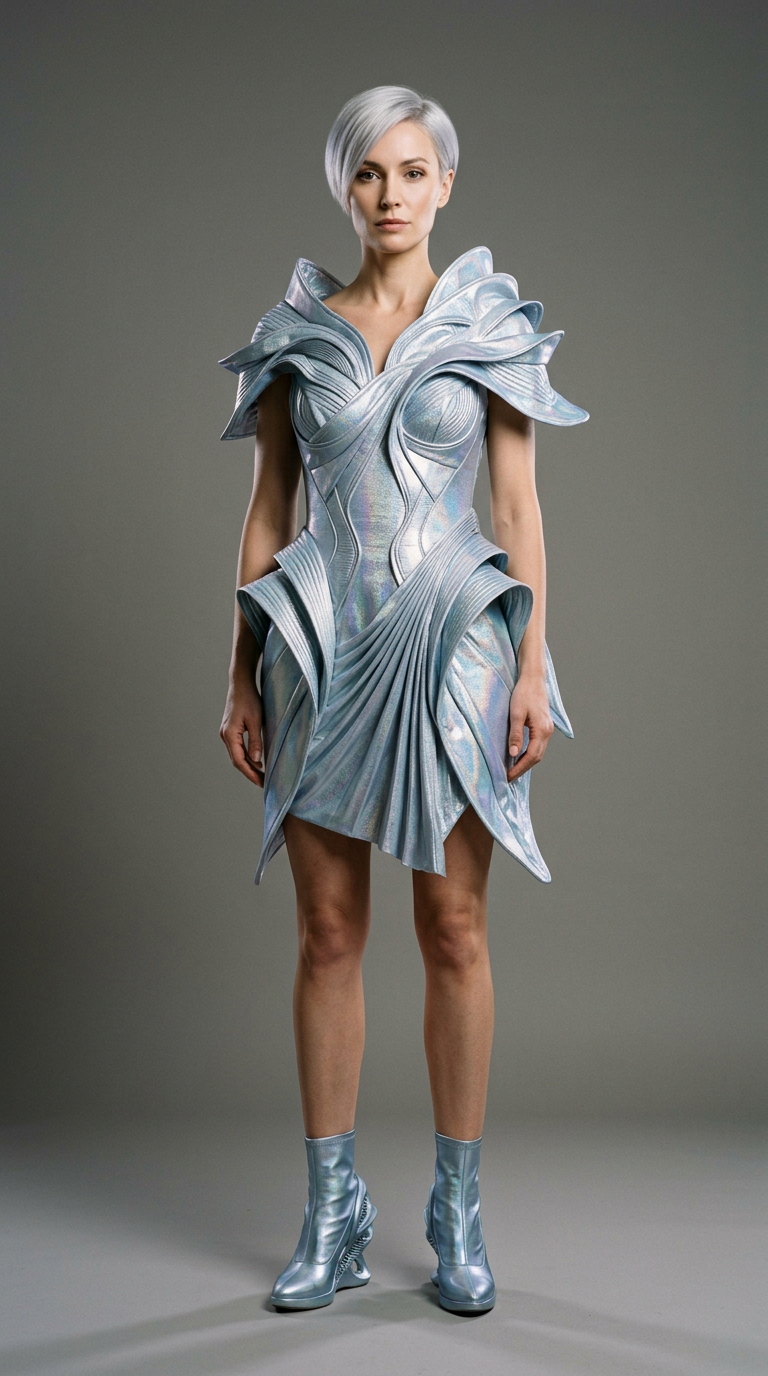
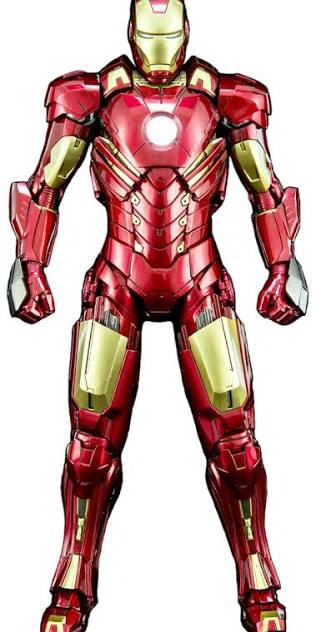
Watch how the armored character follows the original gestures and framing. Compare the full video with the source footage.
Original video
Reference 1
Video character replacement
MiniMax H3 Recast is an AI video character replacement tool. It uses photos of new people to recast an existing video while using the source footage to guide motion, camera movement, cuts, and audio.
Unlike generating a new video from a prompt, Recast starts with a performance you've already recorded. It changes who appears in the scene rather than creating an entirely new sequence.
Keep the video. Replace the people.
Use your original video to guide the performance, choose new people with reference photos, and control how each person is replaced.
Change the people appearing in your video using reference photos. The new photos can guide facial features, hair, clothing, and overall appearance.
Recast multiple people in the same video with up to four reference photos. Add one photo for each person you want to replace.
Use your source video to guide gestures, framing, camera movement, and scene cuts. Review the result because some visual details may change.
Reference photos match people from left to right by default. Use a short instruction when you need to change or clarify the mapping.
Generate at 768P or 1080P. Compare the credit cost before choosing the resolution that works for your project.
Three-step workflow
Start with a finished performance, add one photo for each new person, clarify the cast only when needed, then review the full result.
Upload a 5–30 second video. No individual shot should be longer than 15 seconds.
Upload one clear reference photo per new person, up to four. Order the images to match the people on screen from left to right.
Confirm the cast order, choose 768P or 1080P, and review the credit estimate. Generate, watch the full result, and download it when you're satisfied.
Plan your generation
Credits depend on the source video length and the output resolution. Check the estimate in the generator before you submit.
34credits/sec
A 5-second video costs 170 credits.
50credits/sec
A 5-second video costs 250 credits.
Partial seconds round up to the next whole second.
Better inputs, clearer expectations
Get better results by choosing clear source footage, using suitable reference photos, and checking your video before sharing it.
Use a video where the people you want to replace are clearly visible. Avoid heavy motion blur, blocked faces, and fast scene changes when possible. Clear footage makes it easier for the model to follow the original performance.
Choose sharp, well-lit photos that clearly show each person's face and appearance. Avoid blurry images, heavy filters, and cropped faces. Clear references help guide the new character's look throughout the video.
Check that each reference photo matches the intended person in your video. For scenes with multiple people, review the left-to-right order. Add a short mapping instruction if the replacements could be unclear.
Watch the complete result instead of checking only the first frame. Look for changes in faces, hair, clothing, hands, and interactions with nearby objects. Listen to the original audio to make sure it still fits the new cast.
Production use cases
Give existing videos a new cast, explore creative character combinations, and make alternate versions for social media, ads, and product demos.
Use a reference photo to replace someone in a video you already recorded. Create an alternate cast without filming the scene again.
Replace several people in one video with up to four reference photos. Match each photo to a person on screen and compare the new group cast.
Give a familiar scene a different cast using footage you have permission to edit. See how new characters change the scene without recreating the shoot.
Use approved reference characters to create alternate versions of your own social videos. Compare appearances before sharing a clip.
Try approved actors in an existing video ad before choosing a final cast. Compare versions of the same recorded scene without filming each option.
Use an authorized reference photo to try a different presenter in a recorded product demo. Review how the new appearance fits the original demonstration.
Common questions
Find clear answers about MiniMax H3 Recast inputs, cast mapping, source audio, video length, output resolution, credit cost, and usage rights.
MiniMax H3 Recast replaces people in an existing video with people from cast photos. Unlike a basic face swap, the photos can also guide hair, clothing, and overall appearance.
Upload an existing video and one clear photo of the new person. Check the cast order, choose 768P or 1080P, review the credit estimate, and generate the video.
New accounts receive 50 starter credits. The shortest 768P Recast costs 170 credits, so you need additional credits to complete a five-second generation.
Upload an MP4 or MOV source video. Cast photos can use JPG, JPEG, PNG, or WEBP. Add one clear photo for each person you want to replace.
Your source video must be 5 to 30 seconds long. No individual shot should be longer than 15 seconds.
You can add one to four cast photos, with one photo per new person. By default, the photos match the main people in the source video from left to right.
No. The prompt is optional. Add short instructions only when you need to change or clarify who should replace whom.
The source video guides the motion, camera, framing, cuts, timing, and background. Small visual details can still change, so review the full result.
MiniMax H3 Recast uses the source video's existing soundtrack. It does not automatically replace the original voice with one matching the new person. Review the audio before publishing, especially when the replacement character looks different from the original performer.
Recast starts with an existing performance and changes the people appearing in it. Reference to Video generates a new sequence guided by reference materials and a prompt. Choose Recast when you want to reuse the original action, camera work, and timing.
Recast costs 34 credits per second at 768P or 50 credits per second at 1080P. Partial seconds round up. Use 768P to check the result and 1080P for a higher-resolution version.
If the task fails on the service side, our pricing policy says credits are not consumed or are returned automatically. Check your balance before trying again. If it does not update, contact support@minimax-h3.com with the task ID if available. Check your source files before retrying; a new accepted task may use credits.
Commercial use depends on the site terms, applicable laws, model-provider policies, and your rights to the video, photos, and likenesses. Only upload authorized media.
Upload a source video and one photo per new person. Review the cast order, resolution, and estimated credits before creating your recast.
Recast a Video