Sometimes you already have the scene, you just want a different character in it.
MiniMax H3 Recast uses an existing video and character photos to create a new cast guided by the original performance. The creative work is deciding which footage to keep, who belongs in it, and what needs attention after generation.
This MiniMax H3 Recast guide walks through AI character replacement, from preparing your inputs to making the finished video feel natural. You can start with footage you have permission to edit or record your own performance.
TL;DR: MiniMax H3 Recast
Choose the performance first. Recast uses the source video to guide movement, expressions, camera work, and timing. Pick footage that already communicates what you want.
Treat the reference photo as a casting choice. Face, hair, clothing, and overall appearance can influence the result.
Start with one clear replacement. For multiple people, check the photo order and clarify who replaces whom when needed.
Compare complete clips. Watch turns, occlusions, hands, and object interactions, not just the opening frame.
Plan for the original audio. A new character does not automatically receive a new voice.
Try MiniMax H3 Recast Generator
Choose the Right Character Replacement Project
Start with a scene worth keeping.
AI video character replacement is useful when the existing take already has the action and pacing you need. Before uploading anything, finish this sentence: “I want to keep this performance, but replace the person with…”
Your answer helps define the project:
Social clips and dance videos: Try a different character while using the original choreography and rhythm as the foundation.
Short films and character concepts: Explore how a new cast changes the mood of the same scene.
Two-person conversations: Give both roles new appearances while checking their reactions and interactions.
Product demonstrations: Try another presenter, paying close attention to hands, packaging, and contact with the product.
Your own performance: Act out a specific reaction or gesture, then use it as the source for a new character.
Character replacement is broader than a basic face swap. A cast photo may influence hair, clothing, and overall appearance as well as the face. If you only want to change facial identity while keeping every wardrobe detail identical, do not assume that will happen automatically.
For a new sequence built around multiple creative references, the Reference-to-Video workflow serves a different purpose. Recast is the more focused starting point when you already have the take you want to reuse.
Prepare Your Source Video and Character Photos
Clear inputs make your choices easier to follow.
Choose footage that shows the action
Start with a short, readable moment: a turn toward the camera, a clear reaction, a few dance moves, or a simple exchange between two people.
Watch the source once before thinking about the replacement.
Can you see the face? Do the hands stay in frame?
Does the important action remain visible?
Heavy blur, tiny faces, and long occlusions make both generation and review harder.
Match the framing to the goal.
A medium close-up makes expressions easier to assess.
A wider shot is useful for choreography, but the face may contain less visible detail.
For a product demonstration, keep both the presenter and the object readable.
Test the moment that matters. If your scene depends on a head turn, include that turn in the test. A successful front-facing moment does not tell you how the character will look from the side.
Pick a photo that explains the new character
Use one clear person per reference photo.
Look for a sharp face, readable hair, and lighting that does not hide important features. If the outfit matters, show enough of it to communicate the intended design.
Consider the performance.
A relaxed presenter, an eccentric storyteller, and a stern fictional commander might all fit the same framing, but the original gestures may suit one better than the others.
Try a reference-photo comparison:
Use a face crop and a half-body version of the same image, keeping the source clip and settings unchanged. Compare the face, neckline, hair, and clothing.
The goal is to learn which input communicates your intended appearance more clearly, not to assume that a wider crop always wins.
Replace a Character with MiniMax H3 Recast
Make the first version simple and easy to review.
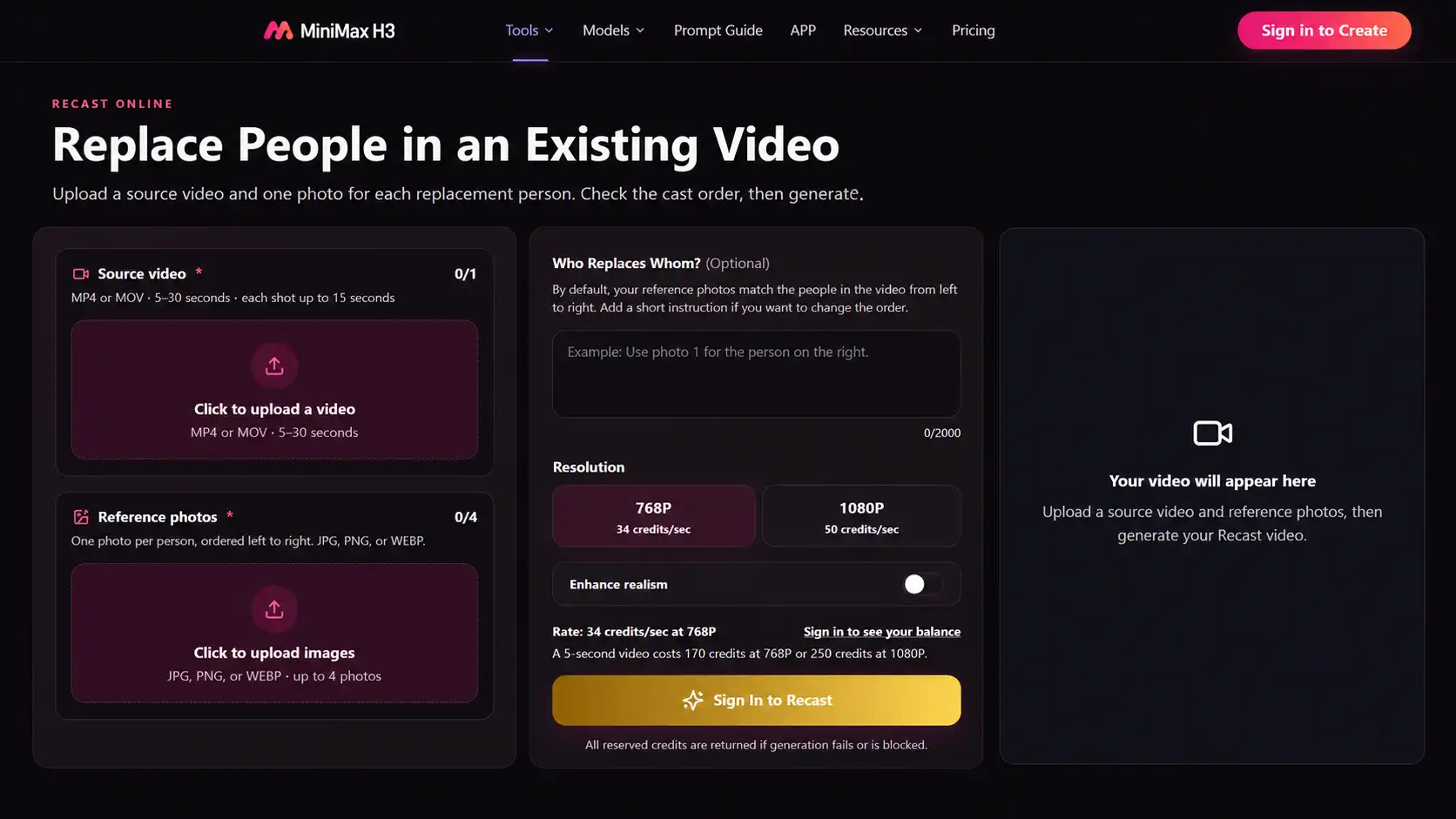
Here is a practical AI character replacement workflow with MiniMax H3.
Step 1: Upload the source video
Open MiniMax H3 Recast and upload your prepared clip. The current tool accepts MP4 or MOV footage lasting 5–30 seconds, with no individual shot longer than 15 seconds.
For your first attempt, choose a short continuous shot within those limits. Keep the main action intact, including a little time before and after it.
Step 2: Add the replacement photo
Upload a clear JPG, PNG, or WEBP image of the new character. Start with one person so you can judge the appearance and performance without also troubleshooting multiple roles.
Check that you selected the intended photo, including the hairstyle and clothing you want it to communicate.
Step 3: Check the character mapping
The prompt is optional. For a straightforward replacement, you do not need to describe the entire scene again.
When the role needs clarification, use a short instruction such as:
Replace the presenter in the blue shirt with the person in the reference photo.
This identifies the replacement. It does not supply a new performance or guarantee that every surrounding detail will remain unchanged.
Step 4: Choose the output and review the estimate
The current page offers 768P and 1080P. A lower-resolution test can help you assess the idea before spending more on a higher-resolution version. Review the displayed credit estimate before generating.
Higher resolution is a detail choice, not a repair tool for incorrect casting or distorted movement. A separate generation may also differ, so review each output on its own.
Step 5: Save and compare
Keep the source video, reference photo, and result together. Play the original and recast at matching timestamps to compare the same expression or gesture.
The MiniMax H3 Recast feature lists current upload requirements and costs; check it before preparing a larger batch.
How to Keep the Performance Natural
The character changes. The performance still matters.
When you use an existing clip
Look for a clear connection between attention and reaction.
A person notices something, pauses, and responds. That sequence gives the audience a reason to believe the expression.
The biggest movement is not always the strongest moment.
A brief glance followed by a smile can communicate more than constant gesturing. Preserve enough context for the reaction to make sense when trimming the clip.
Compare casting choices using the same performance.
Try two characters with different visual personalities, then watch the whole scene.
Does a restrained delivery suit both?
Does one character make an energetic gesture feel more believable?
Choose the version that fits the story, rather than judging only the portrait likeness.
When you record your own performance
To turn yourself into an AI character, begin with a small acting goal.
Build the moment in three parts:
Action: Look toward the object or person that matters.
Pause: Allow a brief moment for the discovery to register.
Reaction: Let the expression develop, then settle.
Keep your eyeline consistent. Let hand gestures emphasize an idea rather than filling every second. Leave room around your body if the movement needs it, and hold the ending briefly instead of stopping the recording mid-action.
To add energy, increase contrast within the performance: calm to surprised, uncertain to confident, distracted to delighted. You do not have to make every movement larger.
Record two versions of the same action: one restrained and one more theatrical. A natural presenter may suit the first; a comic character may suit the second. Compare both after recasting to see which combination serves the intended mood.
Recast Multiple People Without Mixing Up the Roles
Make every replacement unambiguous.
MiniMax H3 Recast supports up to 4 cast photos, with one photo per replacement person. It supports a default left-to-right mapping. Check the order before generating, especially when the characters have similar clothing or switch positions.
For a two-person scene, identify each role using visible features in the source and the corresponding reference photo:
The person in reference photo 1 replaces the woman in the blue jacket on the left. The person in reference photo 2 replaces the man in the gray sweater on the right.
If the scene includes cuts or crossing movement, review those moments carefully. Correct placement in the opening frame does not establish consistency throughout the video.
A useful comparison is to run the same short conversation with the default order and with explicit mapping, if the default is ambiguous.
Check who performs each action and speaks each line. Extra instructions are useful when they clarify roles; they are not automatically a quality upgrade.
Fix Common AI Character Replacement Problems
Change one thing, then check what improved.
The character looks different after turning
Check whether the face becomes small, blurred, or hidden at that moment. Review how clearly the reference shows the person’s features. Try a clearer reference or a less obstructed source segment, then compare the same timestamp.
Hair or clothing changes unexpectedly
Look for ambiguity in the reference: cropped shoulders, hidden hair, or an outfit that is barely visible. Try a photo that shows the intended appearance more clearly. If exact wardrobe continuity matters, check it throughout the clip rather than relying on the opening frame.
Hands or products look wrong
Inspect the moment of contact. Fingers wrapping around a cup, a hand crossing a face, or an object passing between people can expose errors that are hard to notice at normal speed.
Try footage with clearer separation and less obstruction. For commercial demonstrations, compare product shape, packaging, and labels against the original.
The replacement feels unnatural despite a good likeness
Watch the source again. Is the performance already stiff, or does the new character simply feel mismatched with it? Adjust the casting choice or try another take before adding more instructions.
The wrong person has been replaced
Recheck photo order and mapping. Use visible identifiers instead of vague descriptions such as “the main character.” Keep the correction focused on who becomes whom.
The voice does not fit the new character
Recast uses the source soundtrack; it does not automatically create a matching new voice. Decide whether to keep that contrast, choose a more suitable character, or handle dialogue replacement separately.
If you replace the audio during editing, review synchronization again. Changing a soundtrack alone does not update the mouth movements.
For every test, keep a short record: source clip, reference photo, mapping, settings, and what changed. A controlled comparison is more useful than changing all the inputs and guessing which one helped.
Turn Your Recast into a Finished Creative Video
Give the new cast a reason to be watched.

Choose a format that makes the result meaningful:
Before and after: Show the original, then reveal the replacement at the same gesture or expression. Align the clips so the comparison is easy to follow.
One scene, different casts: Switch between versions at matching action points to highlight how each character changes the mood.
A complete short scene: Let the action and reaction play out. The character replacement supports the story instead of becoming the entire story.
For social videos, check the final crop on a phone. Keep faces, hands, and important objects clear of subtitles. Use music to support the timing without cutting away the pause that makes a reaction work.
Before publishing, watch once for the story, once for visual details, and once with attention to sound. Use footage and likenesses you have permission to edit and share.
Try Your First Character Replacement Creation
Start with one clear scene and one deliberate casting choice.
Choose a short clip with a performance you want to keep.
Add a suitable character photo, and compare the result against the source.
Change the input that matters most to your next version.
Start MiniMax H3 Recast to explore a new cast for your next scene.
MiniMax H3 AI Character Swap FAQs
Can I replace a character using only one photo?
Yes. One clear cast photo is enough to start a single-person replacement in the current tool. For multiple people, add one photo for each new person, up to four.
Can I keep the original outfit while changing the person?
Do not assume the outfit will stay identical. Cast photos can influence clothing as well as identity. Choose references that communicate the intended appearance and inspect the result. If exact wardrobe preservation is essential, test that requirement before committing to a longer project.
Will the same character stay consistent across separate videos?
Reusing the same reference photo gives each clip a common identity target, but separate generations can differ. Compare facial features, hair, clothing, and apparent age across clips before editing them into a sequence.
Does higher resolution fix character replacement errors?
No. Higher resolution does not inherently correct an incorrect identity, a mismatched role, or an unnatural interaction. Address the source, reference, or mapping first, and evaluate each new result independently.