A memorable Halloween AI video starts with a clear moment: an entrance, a transformation, a greeting, or a surprise. MiniMax H3 gives you several ways to build that moment, from generating a new scene with references to replacing a character in existing footage.
This guide brings together creative ideas, practical workflows, and adaptable Halloween video prompts for social posts, parties, home displays, and seasonal promotions.
TL;DR: Halloween AI Video Creation
Create your Halloween look: Use photo references to place yourself in a haunted manor, pumpkin cottage, or other Halloween world.
Transform an existing performance: Use MiniMax H3 Recast to turn a walk, dance, or gesture into a Halloween character video.
Make your character talk: Use Lip Sync with a portrait and recorded voice for trick-or-treat welcomes and party greetings.
Bring decorations to life: Animate portraits and witch-window scenes with subtle movement and steady framing.
Get clearer results: Give each reference a specific role, focus on one main action, and describe the camera, sound, and ending.
Try MiniMax H3 Generator Online
Pick Your Halloween Video Idea
Choose the experience before the settings.
Start with what viewers should notice. A costume reveal needs a readable transformation. A haunted portrait might need only a sideways glance.
What you want to create | What to prepare | Suitable workflow |
Yourself in a Halloween world | Character and setting images | Reference to Video |
A Halloween character performing an existing action | Source footage and character image | Recast |
A magical reveal or short story | A prompt or opening image | Text to Video or Image to Video |
A talking Halloween greeting | Portrait and recorded speech | Lip Sync |
A moving portrait or window decoration | An image designed for the display | Image to Video |
Standard MiniMax H3 generation supports 4–15-second clips, build longer stories from several scenes rather than packing every idea into one generation.
Choose the format early: vertical for phone-first posts, widescreen for a TV, or framing that fits your projection surface.
Step into Your Own Halloween World
Keep a familiar face in an unfamiliar place.
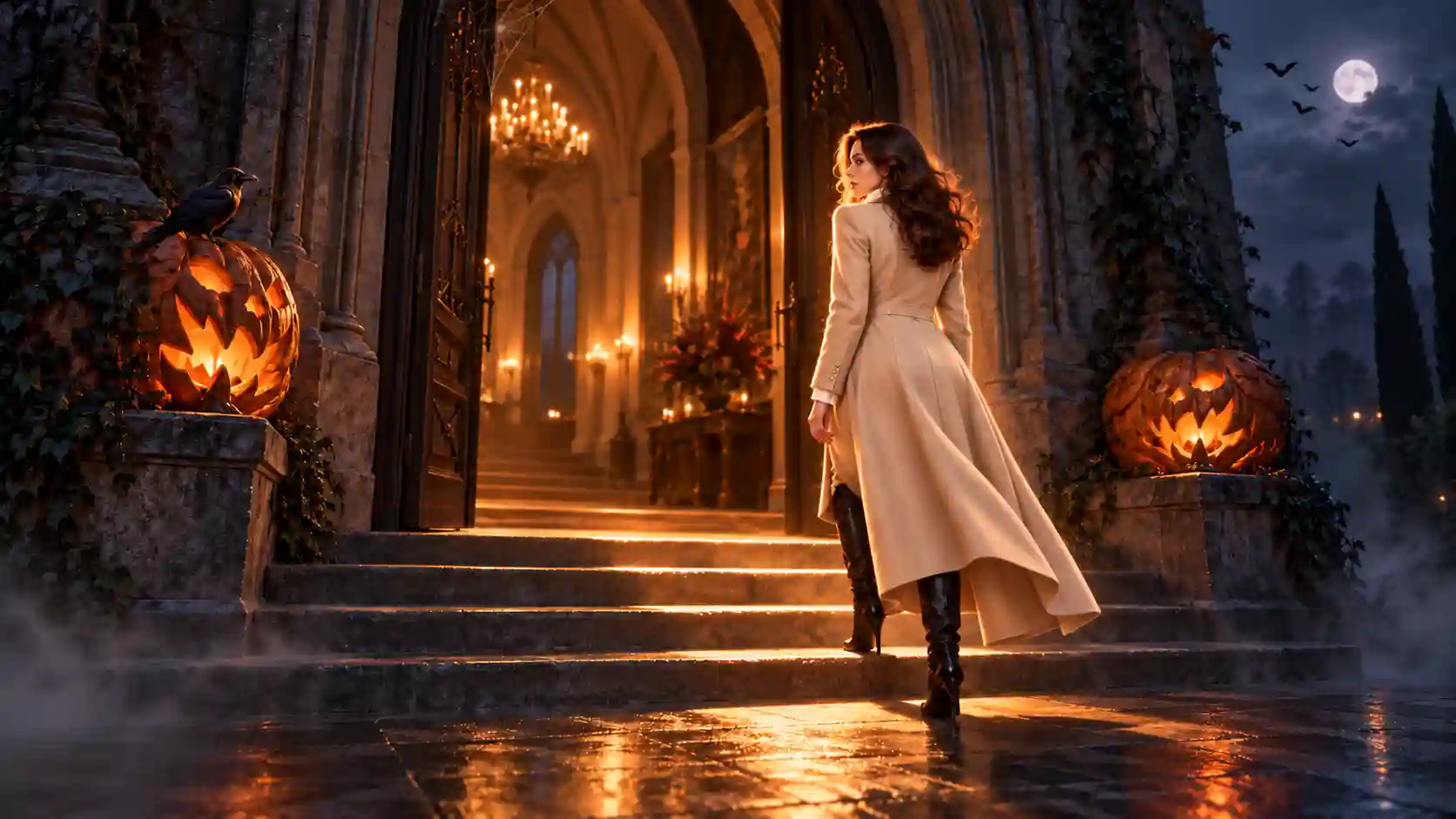
Use a character image to guide appearance and a separate reference to establish the environment. This gives your Halloween scene a clearer visual direction.
Try a Midnight Manor Arrival
Your character approaches an old manor, knocks twice, and watches warm light spill through the opening door.
In the Reference to Video generator:
Upload a clear character image and a setting reference.
Insert each reference using the interface’s selector.
Explain what each image should control.
Describe the action and how the shot ends.
Prompt to try:
Use the person in @image1 as the main character, preserving their recognizable face, hair, and outfit. Use @image2 for the manor exterior and lighting. In one continuous shot, the character approaches the front door, pauses, and knocks twice. The camera follows slowly from a three-quarter angle. Warm light appears through the opening door. Natural footsteps, two clear knocks, and faint party music from inside.
Replace the example reference labels with those assigned to your uploads.
Compare two moods: Keep the person and movement unchanged, but replace the gothic manor with a cozy pumpkin cottage. Cool moonlight creates mystery; warm windows and soft lanterns make the same entrance feel welcoming.
Review the face, outfit, and character’s position throughout the clip. If identity drifts, simplify the movement and clarify which reference controls appearance.
Give Your Performance a Halloween Makeover
Keep the performance. Change the character.
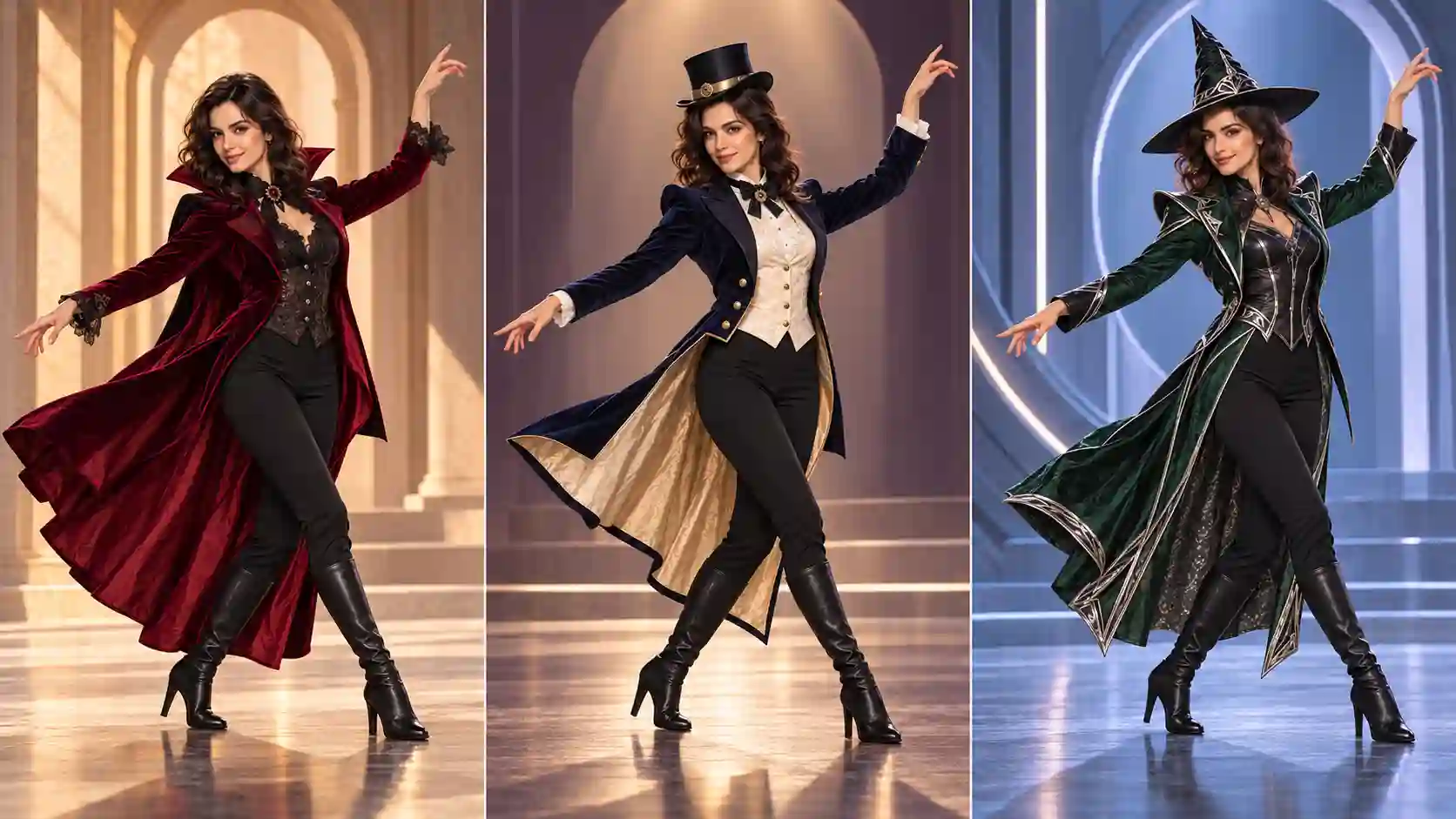
Already have a walk, dance, or dramatic gesture you like? MiniMax H3 Recast provides a workflow for replacing people in existing footage using character references.
One Walk, Three Characters
Start with someone walking forward, turning, and lifting a hat. Recast that performance as an elegant vampire, a vintage magician, or a futuristic witch.
For a clearer starting point, choose footage with:
A visible subject: The face and body are easy to distinguish.
Readable movement: A deliberate turn or gesture.
Limited obstruction: Props and hands do not repeatedly cover the face.
Upload the footage and replacement image, check the replacement order, and generate. Inspect turns, hand movements, and clothing boundaries—not just the opening frame.
Want a Visible Costume Transformation?
Use a first-and-last-frame workflow when you want viewers to see everyday clothing change into a costume.
Begin with the everyday outfit in the first frame. As the person turns slowly, their coat becomes a dark velvet cape and their clothing changes into the vampire costume in the final frame. Keep the face recognizable and the camera fixed. Finish the turn and hold the final pose briefly.
Choose by the result:
Recast suits a new character performing an existing action.
First-and-last-frame generation suits a visible transition between two looks.
Similar framing and compatible poses make that transition easier to direct.
Tell a Halloween Story with a Surprise
Build anticipation, then give the reveal room to land.
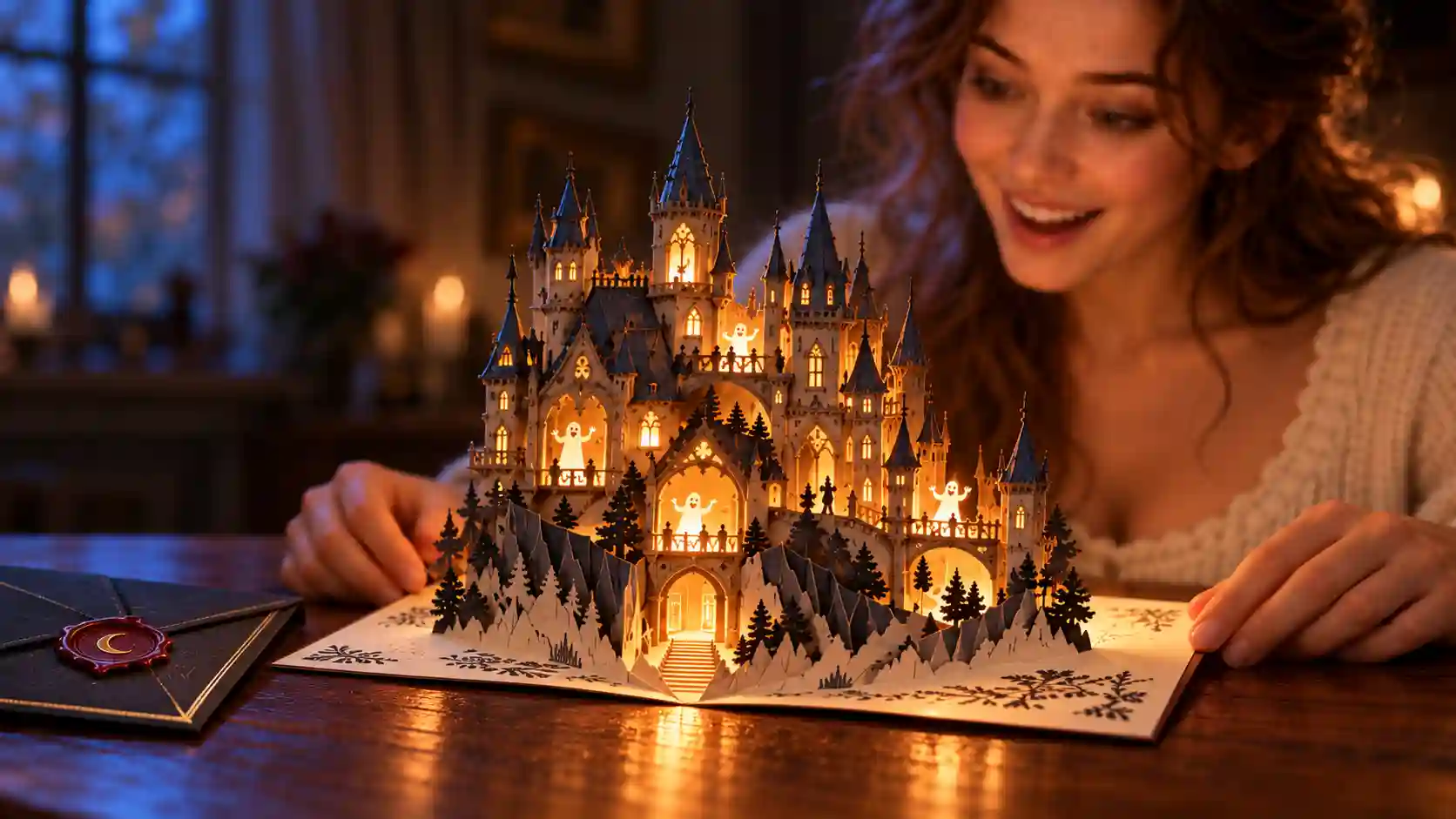
A short Halloween AI video can tell a complete miniature story. Give it a setup, a change, and a memorable result.
Try the Enchanted Invitation
An envelope moves on a desk. Someone opens it, and a tiny illuminated castle unfolds from the paper. Friendly ghosts celebrate behind its windows.
Story beat | What viewers see |
Setup | An envelope shifts beside a candle |
Action | A person notices it and opens it |
Surprise | A miniature castle unfolds from the invitation |
Ending | The camera holds on the tiny celebration |
Prompt to try:
Cinematic Halloween scene at a wooden desk. A black envelope shifts slightly beside a candle. An adult character carefully opens it. A miniature glowing castle unfolds from the invitation, with tiny friendly ghosts celebrating behind its windows. Begin with a medium shot, then move slowly closer. Keep the character, desk, and lighting consistent. Paper rustling, a delicate magical chime, and faint festive music from the castle. End on the fully revealed castle.
Describe sound alongside the action:
Paper rustles when the envelope opens, followed by music from the miniature world. This gives the reveal an audible progression as well as a visual one.
Keep the action manageable.
If the result feels rushed, remove a beat or split the story into two clips. A longer list of events does not automatically create a better narrative.
Give Your Products a Halloween Moment
Make the setting magical while keeping the product clear.
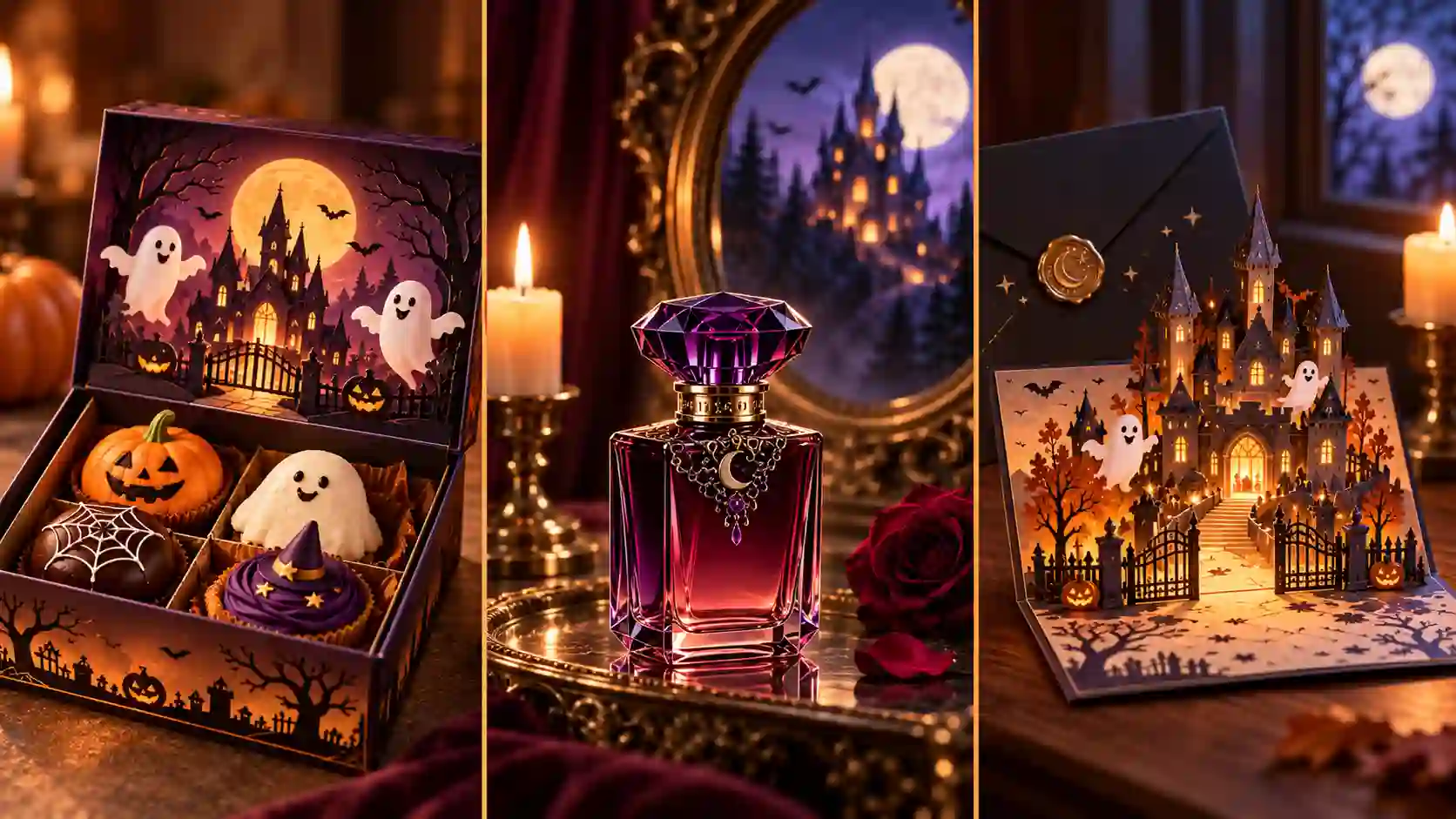
For a Halloween product video, let the creative effect lead attention toward the item.
A dessert box could reveal a miniature ghost theater. A perfume bottle could stand on a gothic dressing table while a castle appears in the mirror behind it.
Start with a clear product reference and identify the details to preserve: shape, color, packaging, and label placement.
Prompt to try:
Use the dessert box in the reference image, preserving its shape, colors, and packaging design. On a warmly lit counter, the lid opens to reveal a tiny paper Halloween stage behind the desserts. Two friendly paper ghosts rise gently from the stage. Keep the desserts clearly visible and the box stationary. Slow camera push, soft cardboard movement, and a brief playful musical flourish. No added text.
Review the packaging throughout the video. If the effect hides the product, reduce its size or place it farther behind the item.
Add exact prices, dates, and promotional text during final editing when accuracy matters.
Make Halloween Animation Feel Handmade
Let the material shape the style.
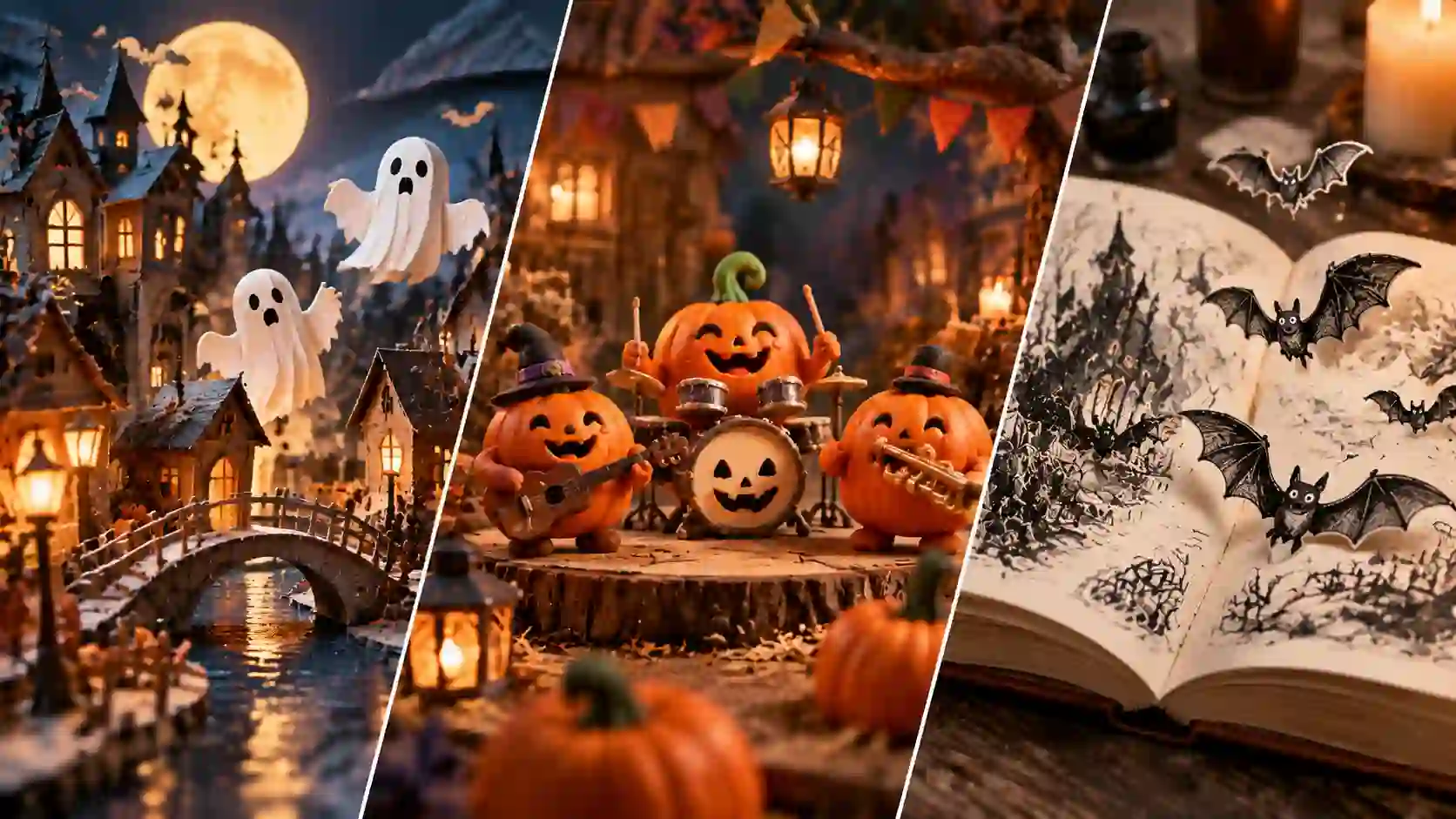
Try a visual treatment that goes beyond realistic monsters:
Paper-Cut Ghost Town: Folded houses light up as paper ghosts rise above the rooftops.
Clay Pumpkin Band: Small clay pumpkins play miniature instruments.
Sketchbook Bats: Ink-drawn bats lift from a notebook while keeping their illustrated outlines.
Prompt to try:
A miniature Halloween town made entirely from layered colored paper. Warm light appears behind the cutout windows, then two small paper ghosts rise above the rooftops and gently wave. Visible folded edges, handmade textures, restrained stop-motion-style movement. Fixed wide shot, soft tabletop lighting, subtle paper rustles, and light bell accompaniment.
Use a style reference when available.
Specify materials across the whole scene, the characters, buildings, props, and ground, to reduce mismatched surfaces.
Make the comparison useful:
Try the same ghost-town idea in paper and clay.
Paper suggests light, hinged movement; clay suits rounded forms and tactile expressions.
Choose the style that supports your intended mood.
Send a Talking Trick-or-Treat Welcome
Give your doorstep a memorable host.
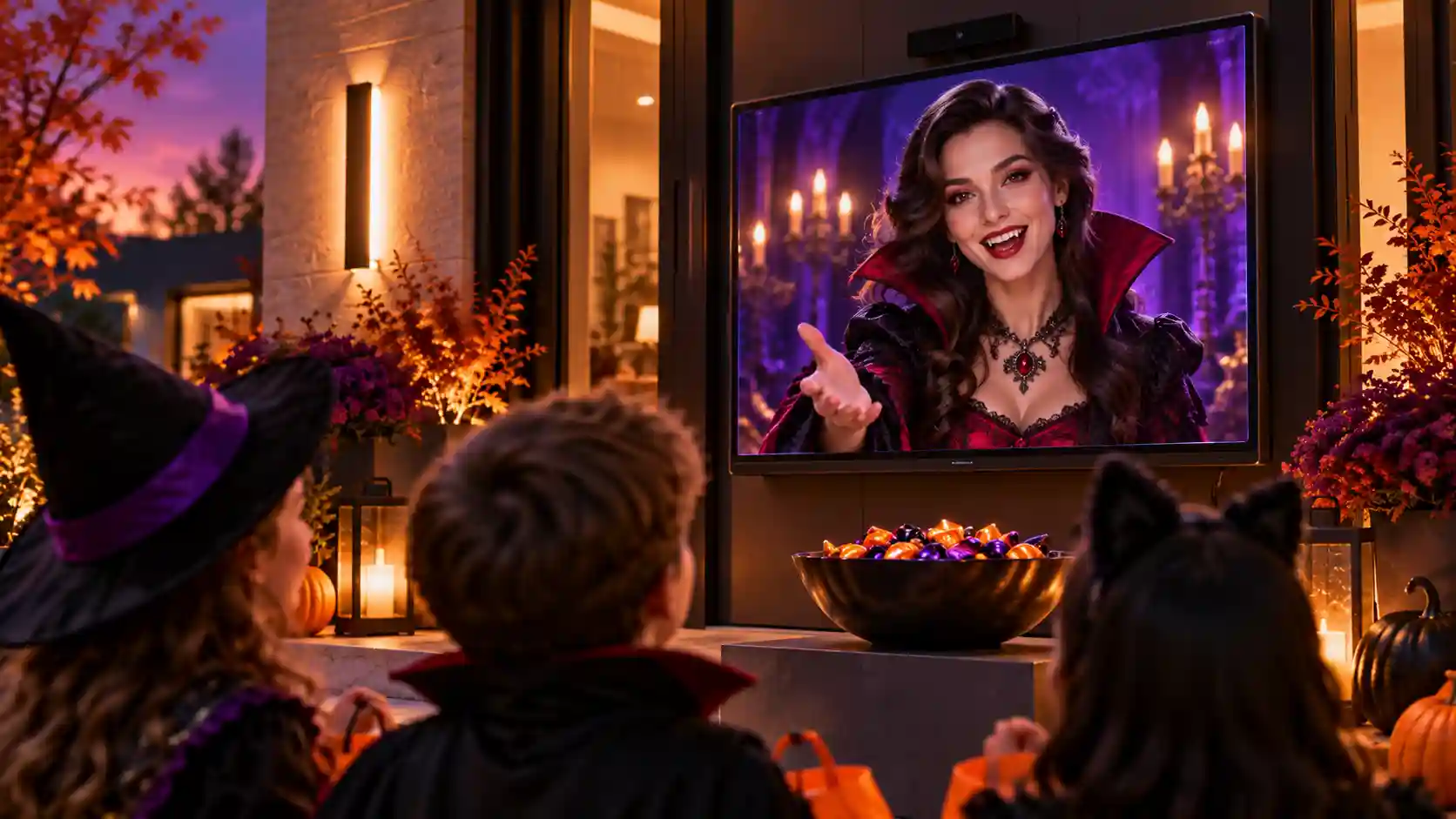
A talking Halloween greeting works well when its purpose is simple: welcome visitors, introduce the candy bowl, or open a party.
Use MiniMax H3 Lip Sync with a character portrait and prepared audio.
Try a Vampire Butler
Choose a near-frontal portrait with a clearly visible mouth. Record a short message with natural pauses:
“Welcome to our haunted manor! Choose a treat, show us your finest monster wave, and have a magical Halloween.”
Upload the portrait and recording, then review the mouth movement, expression, and ending.
Compare the delivery:
Record the same line twice, once as a cheerful welcome and once as a slow, theatrical introduction.
Keep the portrait unchanged to see how the voice changes the performance.
Bring Haunted Portraits and Windows to Life
Small movements can create a convincing illusion.
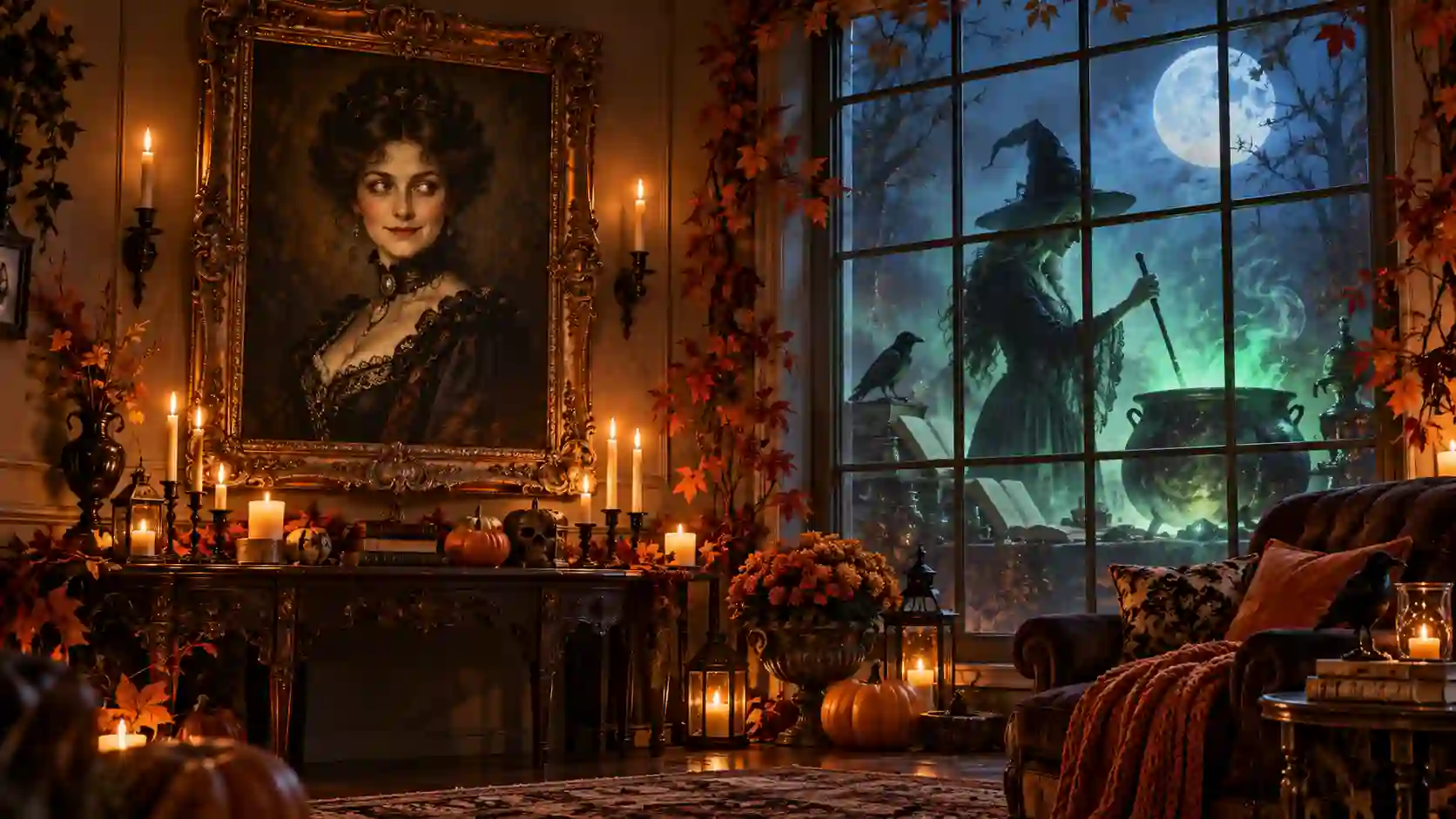
Design the image for its display before animating it. Stable framing helps a moving portrait feel like part of the room.
Animate a Haunted Portrait
A blink, sideways glance, or subtle smile can be more effective than constant movement.
Animate the person in this painted portrait. Their eyes shift gently toward the viewer, followed by one slow blink and a subtle smile. Preserve the painted texture, clothing, frame, and background. Locked camera, no cuts, no zoom. Return close to the starting expression.
Play the clip on a suitably framed screen and hide playback controls.
Put a Witch in Your Window
Create a witch slowly turning a spellbook page or stirring a glowing cauldron. Keep her face, hands, and main prop inside the visible projection area.
Test the real display. Window bars, room lighting, and viewing distance affect the result. A scene that looks clear on a laptop may lose detail when projected.
For repeated playback, compare the first and last frames. Matching poses and lighting help, but you may still need trimming or a short transition to hide the join.
How to Write Better Halloween Video Prompts
Describe what viewers should actually see and hear.
Give Each Reference a Job
Explain the role of every uploaded asset:
Preserve the character’s face and outfit from an image.
Borrow the walking rhythm or camera movement from footage.
Create a new setting or magical event.
Start with the minimum useful material. For MiniMax H3 reference generation, an audio reference must accompany an image or video rather than act as the only visual input.
Describe a Beginning and an Ending
“Make this spooky” leaves the action unclear.
“The portrait looks toward the doorway, smiles, then returns to its original pose” provides an observable sequence.
For costume transitions, describe the movement connecting the opening and ending images.
Separate Action, Camera, and Sound
Give each part a clear instruction:
Action: The invitation unfolds into a miniature castle.
Camera: Slowly move closer to reveal the windows.
Sound: Paper rustling, followed by faint music from inside.
Ending: Hold on the finished castle.
Use this reusable planning structure:
Reference roles → Subject and setting → Action → Camera → Dialogue and sound → Ending → Details to preserve.
This is a writing checklist, not required interface syntax.
Fix the Details Before You Share
Review the video where people will watch it.
Watch once for appearance, once for movement, and once for sound. Then preview the result on the intended screen or platform.
The character changes: Simplify the action and clarify which reference controls the face and outfit.
The story feels rushed: Remove an event or divide it into separate clips. Hold the final reveal longer.
The scene is too dark: Specify a light source illuminating the face or main object.
The costume transition jumps: Use compatible starting and ending poses and describe the intermediate movement.
Music competes with speech: Reduce competing effects or lower the music during editing.
The loop has a visible break: Compare framing, expression, and lighting at the join; trim to more compatible moments.
Check subtitles, event details, cropping, and playback volume before publishing.
For longer videos, reuse approved references across scenes and assemble the strongest clips in an editor.
Create Your Next Halloween AI Video
Choose one character, one setting, and one clear action.
Turn that moment into a costume reveal, a talking greeting, or a decoration that makes guests look twice.
Start creating with MiniMax H3 and bring your Halloween idea to the screen.
MiniMax H3 Halloween AI Video FAQs
Can I make a Halloween AI video from one photo?
Yes. Use image-to-video when the photo should establish the opening composition. Use reference-to-video when you want its character or style to guide a different scene.
Which workflow should I use for a Halloween costume video?
Use Recast to put a replacement character into an existing performance. Use suitable opening and ending images when you want to show a costume transformation during the clip.
Can my Halloween character speak with my voice?
Yes. Prepare a clear recording and upload it with a portrait to the site's Lip Sync tool. Review the current file requirements before uploading.
How do I create a longer Halloween video?
Plan several short scenes, generate them separately, and assemble them in an editor. Standard H3 generation supports 4–15-second clips; Recast and Lip Sync have separate input limits.
Can I make a seamless Halloween projection loop?
You can design for looping with a fixed camera and compatible beginning and ending states. Inspect the join and edit it if needed—similar frames alone do not guarantee seamless playback.